

File Parsing and Chunking require a WPSOLR Enterprise license.
This documentation describe the configuration of your indexes for File Parsing and Chunking.
Parsing & Chunking connectors
Creating a WPSOLR Parsing & Chunking Connector
WPSOLR uses Parsing & Chunking connectors to communicate with external document processing services such as LlamaParse or Unstructured.
A connector is responsible for:
- Uploading files to the parsing service
- Monitoring the processing status
- Retrieving the extracted content
- Returning the result to WPSOLR for chunk generation and indexing
This architecture makes it easy to support multiple parsing providers while keeping the same indexing workflow.
WPSOLR manages the indexing process and the connector to provide the extracted content.
Configuration setting for LlamaParse
- Create a free trial LlamaParse Cloud account and project
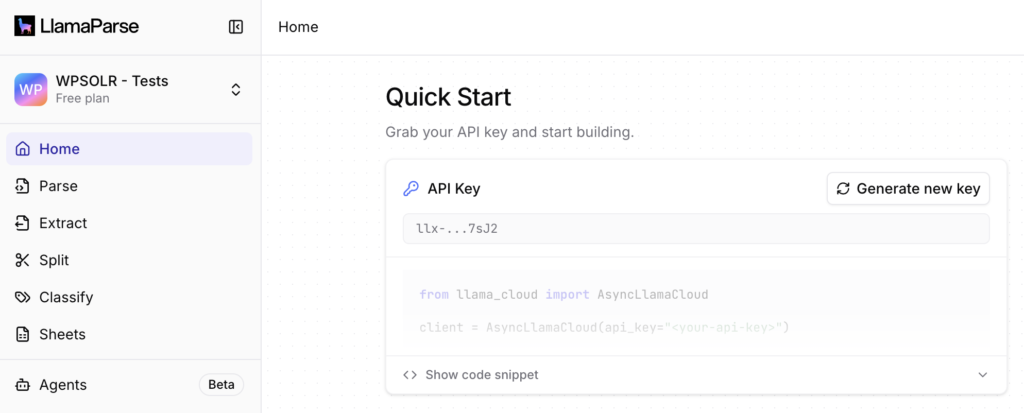
- Collect your LlamaParse’s project API key on your new project home page. You will paste it in WPSOLR settings later.
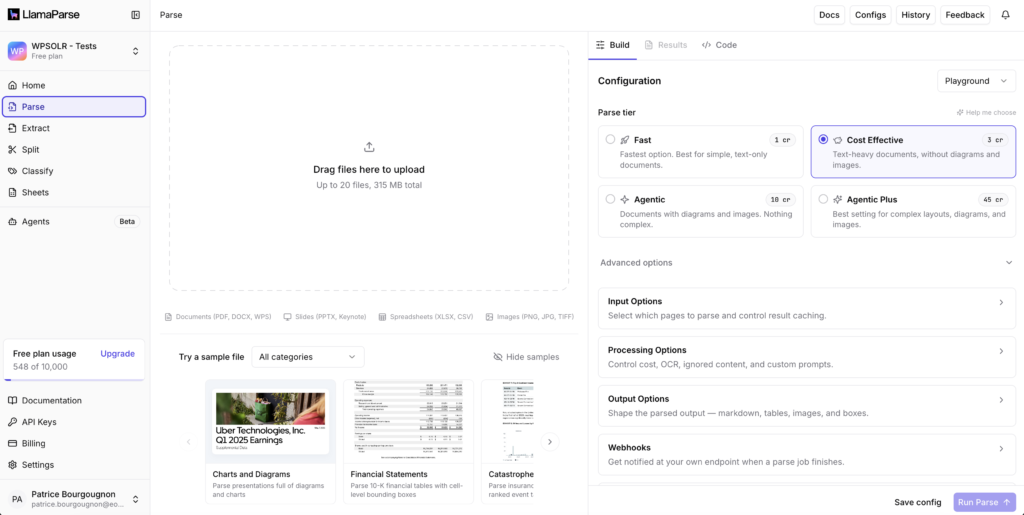
- Create a Parse configuration in menu “Parse”. Save it.
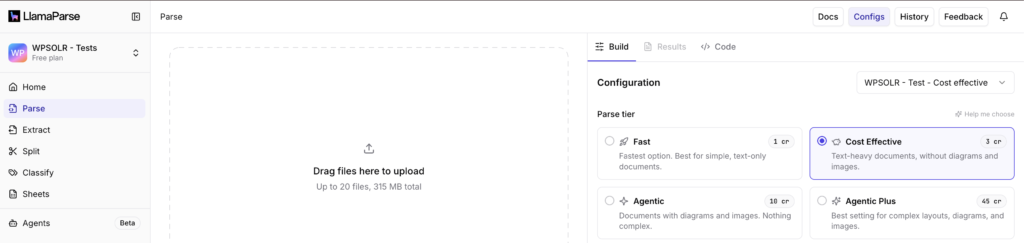
- Navigate to your LamaParse configuration by clicking on button “Configs” in menu “Parse”
- Click on icon “View JSON” of your configuration, and copy the json settings.
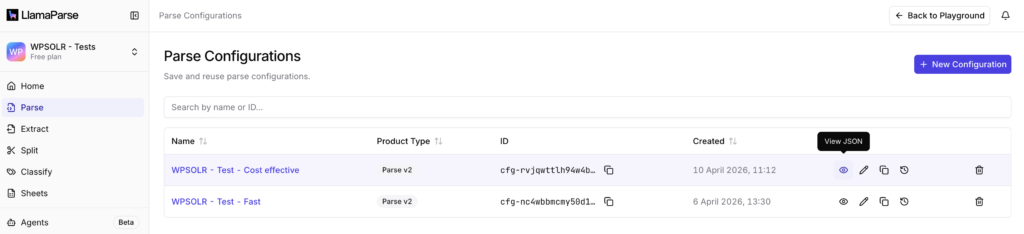
- Copy the JSON content. You will paste it in WPSOLR settings later.

- Create a LlamaParse connector in WPSOLR. Copy your API key and JSON Parse settings in the connector fields.Create a new connector:
 Copy your API key and JSON settings, then save:

- If you see an error, remove the extra parameter “
product_type"before pasting JSON:

- If you see an error, remove the extra parameter “


This is all you need to configure the LlamaParse connector. The remaining settings below are common to all parsing connectors, including LlamaParse and Unstructured.
Configuration setting for Unstructured
- Create a free trial Unstructured Cloud account
- Create your Unstructured API key. You will paste it in WPSOLR settings later.

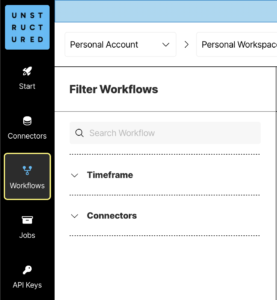
- Create a new Workflow configuration in menu “Workflow”. Save it.
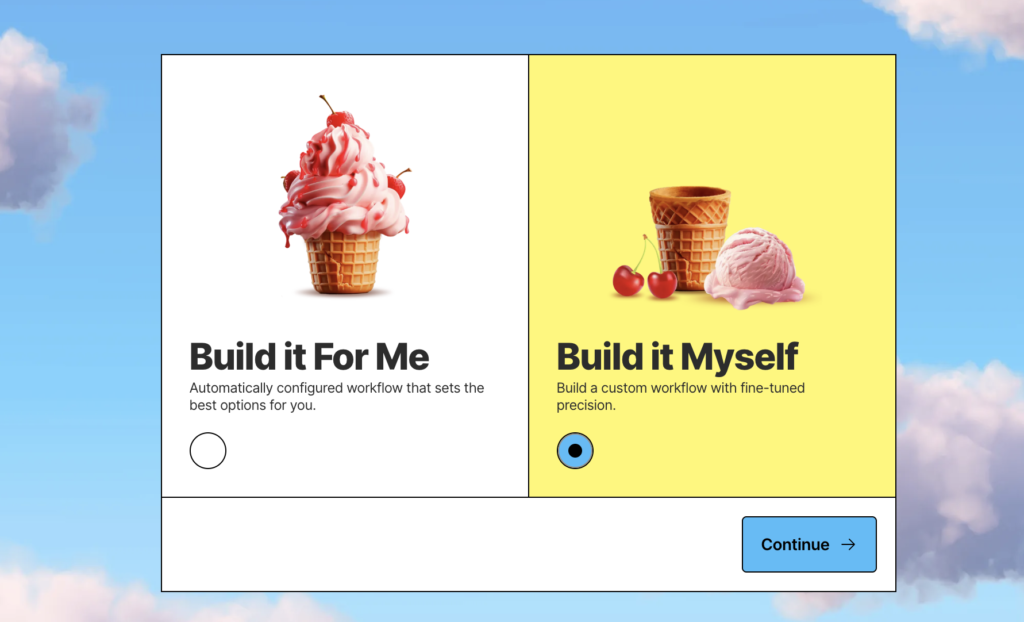
- Add a chunker transformer after the partitioner:

- Configure the partitioner to your liking and budget:

- Configure the chunker to your liking and budget:

- Save your workflow for reference. We will not use it, but its JSON configuration
- Click on menu “Show Options” of your Workflow

- Copy the JSON content of the “job_nodes” property. You will paste it in WPSOLR settings later.

- Create a Unstructured connector in WPSOLR. Copy your API key and JSON Parse settings in the connector fields.


This is all you need to configure the Unstructured connector. The remaining settings below are common to all parsing connectors, including LlamaParse and Unstructured.
Activate WPSOLR add-ons
Activate the WPSOLR Parsing and Chunking add-on
The add-on will send chunks returned by the Parsing and Chunking connector to the search connector.

Activate the WPSOLR ACF add-on
The add-on will send all ACF file fields to the Parsing and Chunking connector.

Create two projects to configure the “Parsing and Chunking” and “Search” connectors
You will need to setup the Parsing and Chunking connector, and a Search connector of your choice. Each connector requires its own project.
Click on link “Manages projects” in menu “2.1 Connector”:

Create two projects, one for the Parsing and Chunking connector, one for the Search connector:

Assign the Parsing and Chunking connector to the project

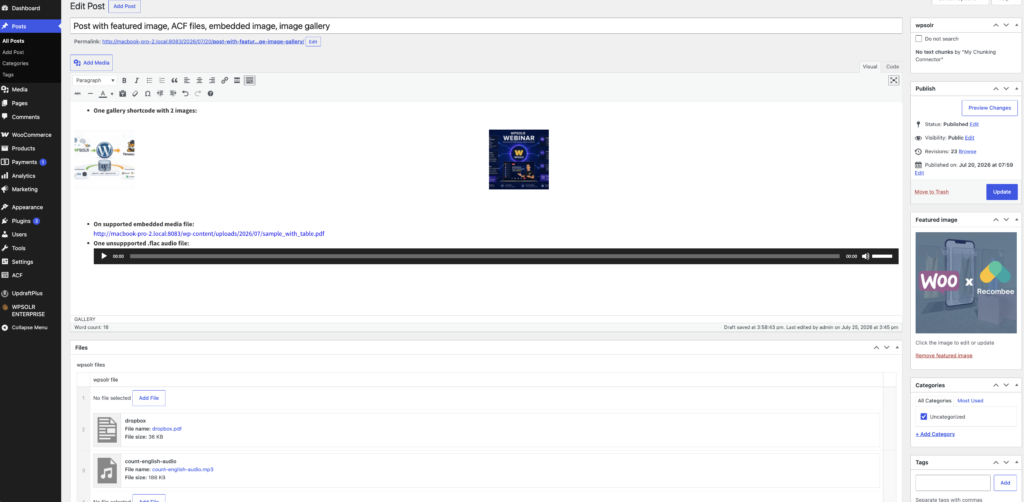
Select the data to be chunked

- Expand shortcodes: expands shortcodes if you want to include chunking elements like image/audio/video galleries.
- Embedded media: select the post type embedded media elements that you wish to chunk, like the featured image, embedded library images, or embedded library files.
- Media type: select the media library attachment types that you wish to chunk and search.
Indexing and searching chunks
Create a WPSOLR Search index
For this documentation, we will use an local Opensearch index, but any other supported search engine would be fine. You can find detailed instructions here.

Assign the search index to its own project

- “Results have no citations”: when the search index has not been configured with citations at all (see details below how to configure a search index with citations)
- “Hide results citations”: when the search index has been configured with chunks, but you want to filter out citations for this specific project
- “Show results citations”: when the search index has been configured with chunks, and you want to show citations for this specific project
- “Maximum number of citations per file”: let’s imagine 30 citations from the same pdf file were returned in results. You can use this parameter to show only a smaller number of citations for each file, like “1” in the above screen capture. With 50 citations from 12 files, only 12 citations will be shown in results.
- “Maximum number of distinct files per post type”: let’s imagine 70 citations from 10 distinct files were returned in results. You can use this parameter to show only a smaller number of files cited, like “5” in the above screen capture. # citation here: (5 files) x (1 citation per file ) = 5 citations in total instead of 70.
What are search citations?
Search citations are file chunks shown in results, inside their post type, with a position like the page number or the audio/video timestamps.
Select the chunks to be indexed

- Select the connectors from which to index chunks: check the Parsing & Chunking connector’s name(s) you created before. Notice that several connectors can appear in the list: a Parsing & Chunking connector can supply chunks to several search indexes, and a search connector can index chunks from several Parsing & Chunking connectors.
- Use the Cron extension to schedule chunks indexing: recommended when you have lots of documents and file chunks.
- Index downloaded chunks immediately : as soon as a file’s chunks are downloaded from the Parsing & Chunking connector’s Cloud provider, they are indexed and ready to be searched.
In our settings above, 3 post types are chunked and indexed: posts, pages, and attachments (“Media”). All post types will appear in search results and suggestions, enriched with their respective file citations. Media here is a post type attached to a media file. The same media file can also be attached to a post or page with embedded media, or media galleries, or ACF file fields. You can instead decide to show only standard post types like posts and pages and products, also enriched with their embeded file citations: just unselect “Media” in the above screen.
WPSOLR Chunks metabox
What is the WPSOLR Chunks Metabox?
The WPSOLR Chunks metabox appears on supported WordPress content after a document has been parsed and chunked.
It provides a clear view of the generated chunks, allowing you to inspect the text that will be indexed by your search engine.
This makes it easy to verify the parsing results, troubleshoot extraction issues, and understand exactly what content is available for AI-powered search, semantic search, and retrieval.
WPSOLR Chunks Metabox file states
- Empty metabox: No file on this post type has been uploaded for chunking yet.
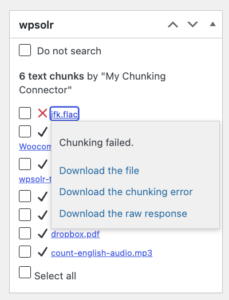
- Metabox with files still processing or with errors: after publishing a post type, all files not yet in the chunking cache are uploaded to the Chunking Cloud provider. The file is marked as “Processing”, until it has completed or failed.
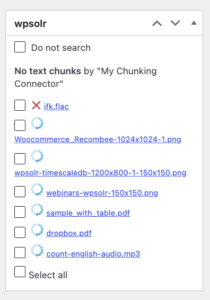
You can click on each file link to download everything returned by the Chunking Cloud provider.
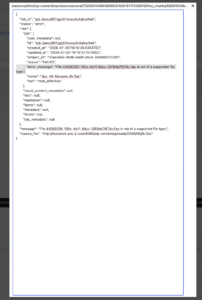
Below is an example of a file error, perfectly explained as being not supported by the selected Chunking Cloud provider:
– Click on link “jfk.flac”:
– Then click on link “Download the chunking error”:
- Metabox with successful files with chunks: as soon as the file chunks are processed, WPSOLR download them in a local cache folder specific to the selected Parsing & Chunking connector
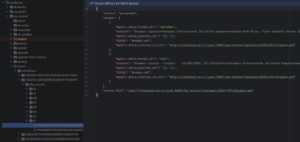
You can click on successful file link to download the chunks returned by the Chunking Cloud provider. You will see the file containing chunks stored in the local cache above.
– Click on link “dropbox.pdf”:
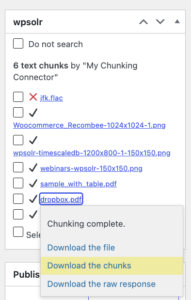
– Then click on link “Download the chunks”:
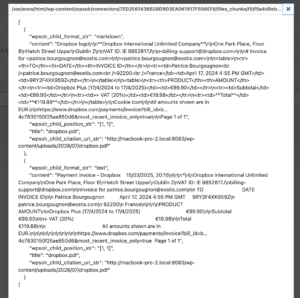


Counting files chunks in local cache
The metabox displays the total number of chunks in the connector’s local cache for the current edited post type. “6” chunks in the example below:

Deleting local files in cache
All files being cached locally, including errors and processing files, if you want to restart the chunking process you just have to delete the cache and publish the post type.
– Select one or several files, click on “Delete file chunks and raw response” and publish the post type again:


Using Batches
- Select your chunking connector to manually start the chunking process:

- “Files uploaded for chunking”
These are the post types with chunks to upload to the Cloud Chunking API. - “File chunks downloaded”
After uploading files, WPSOLR will fetch the Cloud Chunking API to download their chunks. You may have to try several times until all chunks are processes or in error. - “File chunks with errors”
WPSOLR detected an error returned by the Cloud Chunking API. You can follow the error links to filter the post types with errors, then edit each post type to check errors in their metabox:

- “Files uploaded for chunking”
- Select your search index connector to manually start the indexing process:

- “Documents to process”
Index all post types with or without existing chunks. Chunks should have been processed first as described above. - “Chunked files to process”
WPSOLR detected some post types with new chunks available for indexing.
- “Documents to process”
Using Cron Scheduling
Considering the asynchronous nature of the Cloud Chunking API, using a cron to schedule everything makes sense.
- Activate the WPSOLR Cron Scheduling add-on
- Set the chunking connector in first position (use drag&drop if necessary)

- Set the search connector in second position

You can start a cron every night, every hour or more frequently. You can also schedule chunking and indexing independently: chunking more frequently than indexing for instance.
Showing Citations
Citations templates
Citations text templates
You can modify the citations text templates in menu “2.6 Texts”. Those texts can also be translated with WPSOLR WPML or Polylang add-ons.

Citations Twig templates
For more advanced modifications, you can duplicate the WPSOLR Twig templates into your active theme’s directory.
Citations in search results
- Chose a Twig citations template on the search connector:

- The citations will appear on the active theme’s search page results managed by this search connector:

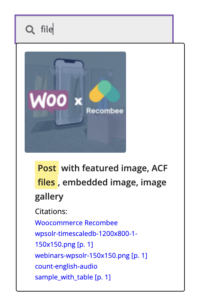
Citations in suggestions
- Chose a citations Twig template on the search connector’s suggestions settings :

- The citations will appear on the suggestions managed by this search connector:

Frequently Asked Questions
What is document chunking?
Document chunking is the process of splitting large documents into smaller, meaningful sections called chunks. Each chunk can then be independently indexed, searched, and used by search applications.
Instead of treating a complete document as a single block of text, WPSOLR Chunking creates smaller searchable units that improve relevance and accuracy.
Why does WPSOLR use chunking?
Large documents often contain multiple topics. Indexing them as a single document can make search results less precise because the matching content may represent only a small part of the document.
Chunking allows WPSOLR to:
- Return more relevant search results.
- Improve AI-generated answers by retrieving only the most useful passages.
- Handle large documents that exceed language model context limits.
- Preserve relationships between document sections.
Which document types can be chunked?
WPSOLR Chunking can process many types of content, including:
- PDF documents.
- Office documents.
- Text files.
- HTML content.
- WordPress posts and pages.
- Other formats supported by connected parsing services.
The available formats depend on the configured parser connector.
Which document parsing and chunking providers are supported?
WPSOLR supports leading document processing providers to extract and structure content before indexing.
You can choose the solution that best matches your requirements:
- LlamaParse — Advanced document parsing designed to extract high-quality structured content from complex documents such as PDFs, reports, and technical documentation.
- Unstructured — A flexible document processing platform supporting a wide range of file formats and extraction workflows.
Both providers integrate with the WPSOLR Chunking workflow, allowing you to transform documents into optimized searchable chunks for traditional search, vector search, and AI-powered retrieval.
You keep control of your content processing strategy while WPSOLR provides the search and retrieval infrastructure.
How does WPSOLR decide where to split documents?
WPSOLR can use different chunking strategies depending on the document structure and configuration.
Chunking can be based on:
- Paragraph boundaries.
- Document sections and headings.
- Sentence boundaries.
- Token or character limits.
- Semantic segmentation provided by AI-powered parsers.
What is the difference between parsing and chunking?
Parsing extracts the content and structure of a document.
Chunking divides the extracted content into smaller searchable pieces.
For example:
- A PDF parser extracts text, headings, tables, and metadata.
- The chunking process splits this extracted content into optimized sections for search and AI retrieval.
Does WPSOLR store chunks as separate documents?
Yes. WPSOLR can index chunks as individual searchable records while keeping references to the original document.
Each chunk can contain:
- The extracted text.
- The parent document identifier.
- Chunk position information.
- Metadata from the original document.
- Additional fields required for filtering and ranking.
Can users search both original documents and chunks?
Yes. WPSOLR can be configured to search chunk-level content while maintaining links back to the original document.
This allows users to find the exact relevant section while still accessing the complete source document.
How does chunking improve AI search?
AI search systems retrieve information before generating an answer. If the retrieved content is too large or contains unrelated information, the generated answer quality decreases.
Chunking improves AI search by:
- Reducing irrelevant context.
- Increasing retrieval precision.
- Providing focused passages to language models.
- Supporting vector and hybrid search.
Does WPSOLR support semantic chunking?
Yes. When using compatible AI parsing or indexing connectors, WPSOLR can support semantic approaches where chunks are created based on meaning rather than only fixed sizes.
Semantic chunking helps preserve complete ideas and improves retrieval quality for complex documents.
What is the recommended chunk size?
There is no universal ideal chunk size. It depends on:
- Document type.
- Search engine.
- Embedding model.
- Language model context size.
- Expected user queries.
WPSOLR allows administrators to adjust chunking settings to optimize results for their specific use case.
Does chunking work with vector search?
Yes. Chunking is especially useful for vector search because embeddings work best when each vector represents a focused piece of information.
Instead of generating one embedding for an entire document, WPSOLR can generate embeddings for individual chunks, improving similarity matching.
Can chunking be combined with keyword search?
Yes. WPSOLR supports combining chunk-based retrieval with traditional keyword search.
Hybrid search can combine:
- Exact keyword matching.
- Full-text relevance scoring.
- Vector similarity.
- Metadata filtering.
This provides better results across both traditional and AI-powered search experiences.
How do I configure WPSOLR Chunking?
Configuration depends on the selected parsing and indexing workflow.
Typical steps are:
- Enable document parsing.
- Configure a parser connector.
- Select chunking options.
- Index the generated chunks.
- Test search and AI retrieval quality.