
WPSolr logo
  • Brands & Agencies 💛
  • Products
    • Parsing & Chunking
    • Search
      • Algolia  Search
      • Apache Solr  Search
      • Elasticsearch  Search
      • Google AI Commerce  Search
      • OpenSearch  Search
      • OpenSolr  Search
    • AI Search
      • OpenSearch  AI Search
      • PostgreSQL  AI Search
      • Vespa  AI Search
      • Weaviate  AI Search
    • AI Recommendations
      • Amazon Personalize  AI Recommendations
      • Recombee  AI Recommendations
    • AI Personalized Search & Recommendations
      • Algolia  AI Personalized Search & Recommendations
      • Google AI Commerce  AI Personalized Search & Recommendations
  • Learn
    • Documentation & Guides – Everything to get started fast
    • Youtube – 100 practical videos from setup to live site demos
    • Forums – Direct support from our team
    • Blog
  • Pricing
  • My licenses
  • Meet
  • 📞  Call
    • 📞  US : (951) 612-8259
    • 📞  France : 01 62 04 55 85
  • Brands & Agencies 💛
  • Products
    • Parsing & Chunking
    • Search
      • Algolia  Search
      • Apache Solr  Search
      • Elasticsearch  Search
      • Google AI Commerce  Search
      • OpenSearch  Search
      • OpenSolr  Search
    • AI Search
      • OpenSearch  AI Search
      • PostgreSQL  AI Search
      • Vespa  AI Search
      • Weaviate  AI Search
    • AI Recommendations
      • Amazon Personalize  AI Recommendations
      • Recombee  AI Recommendations
    • AI Personalized Search & Recommendations
      • Algolia  AI Personalized Search & Recommendations
      • Google AI Commerce  AI Personalized Search & Recommendations
  • Learn
    • Documentation & Guides – Everything to get started fast
    • Youtube – 100 practical videos from setup to live site demos
    • Forums – Direct support from our team
    • Blog
  • Pricing
  • My licenses
  • Meet
  • 📞  Call
    • 📞  US : (951) 612-8259
    • 📞  France : 01 62 04 55 85
  • Brands & Agencies 💛
  • Products
    • Parsing & Chunking
    • Search
      • Algolia  Search
      • Apache Solr  Search
      • Elasticsearch  Search
      • Google AI Commerce  Search
      • OpenSearch  Search
      • OpenSolr  Search
    • AI Search
      • OpenSearch  AI Search
      • PostgreSQL  AI Search
      • Vespa  AI Search
      • Weaviate  AI Search
    • AI Recommendations
      • Amazon Personalize  AI Recommendations
      • Recombee  AI Recommendations
    • AI Personalized Search & Recommendations
      • Algolia  AI Personalized Search & Recommendations
      • Google AI Commerce  AI Personalized Search & Recommendations
  • Learn
    • Documentation & Guides – Everything to get started fast
    • Youtube – 100 practical videos from setup to live site demos
    • Forums – Direct support from our team
    • Blog
  • Pricing
  • My licenses
  • Meet
  • 📞  Call
    • 📞  US : (951) 612-8259
    • 📞  France : 01 62 04 55 85
Expand All Collapse All
  • What is WPSOLR ?
    • The standard WordPress SQL search
    • The WPSOLR search with Elasticsearch, Apache Solr, or Algolia
  • Your configuration journey, step by step
    • Install Apache Solr
    • Hosted Apache Solr and SolrCloud Services
    • Install Weaviate
    • Install Opensearch
    • Install Elasticsearch
    • Elasticsearch Hosting
    • Configure search
      • Getting started with search
      • Getting started with Ajax (live) search
      • Getting started with facets
      • 0. Connect your indexes
        • Create a Google Retail search index
        • Create an Elasticsearch index
          • Generate a test Elasticsearch index
          • Create an Elastic Elasticsearch index
          • Create an Elasticsearch index
          • Create a Qbox Elasticsearch index
          • Create an ElasticPress Elasticsearch index
          • Create an Aiven Elasticsearch or OpenSearch index
          • Create a Bonsai Elasticsearch index
          • Create an Amazon AWS Elasticsearch index
          • Create an ObjectRocket Elasticsearch index
          • Create a Cloudways Elasticsearch or Opensearch index
          • Create an Alibaba Cloud Elasticsearch index
          • Create a Compose Elasticsearch index
          • Connect to an Elasticsearch index
        • Create an Apache Solr index
          • Generate a test Apache Solr index
          • Create an Apache Solr index
          • Create a SearchStax SolrCloud index
          • Create an Opensolr Solr index
          • Connect to an Apache Solr index
        • Create an Opensearch index
          • Create a WPSOLR Hosting OpenSearch index
          • Create an Amazon AWS OpenSearch index
        • Create a Weaviate index
          • Weaviate with Google PaLM API
          • Weaviate with GPT4All
          • Weaviate with sentence transformers
          • Weaviate with CLIP text-to-image
          • Weaviate with HuggingFace Endpoints API
          • Weaviate with OpenAI GPT API
          • Weaviate with Cohere Multilingual API
          • Weaviate with Question Answering transformers
          • Weaviate with Hybrid search
          • Weaviate with Reranker - Cohere
          • Weaviate with Reranker - Transformers (cross-encoders)
        • Create an Algolia index
      • 1. Activate extensions (Add-ons)
        • bbPress add-on
        • YITH WooCommerce Ajax Search add-on
        • SEO add-ons
          • Yoast SEO add-on
          • All in One SEO add-on
        • Listable add-on
        • ACF add-on
        • Advanced Scoring add-on
        • Cron Scheduling add-on
        • Theme add-on
          • Filters layouts
            • Radiobox & Checkbox Layout
            • Numeric Range Layout
            • Colour Picker Layout
            • Date Picker (Flatpickr) Layout
            • Range Slider Layout
          • Add Ajax to the current Theme
          • Collapse taxonomy hierarchies
          • Custom Facets CSS
        • WPML add-on
        • Premium add-on
          • Manage more than one Elasticsearch or Solr index
        • PDF Embedder add-on
        • Geolocation add-on
        • AI Natural Language APIs add-on
          • Amazon Comprehend
          • Google Natural Language
          • Aylien Text Analysis
          • MeaningCloud
          • Qwam Text Analytics
        • Toolset Types add-on
        • AI Image and OCR APIs add-on
          • Google Vision
          • Amazon Rekognition
        • Embed Any Document add-on
        • MyListing add-on
        • Polylang add-on
        • WooCommerce add-on
        • Cross-domain federated search add-on
        • Directory+ add-on
        • Toolset Views add-on
        • Listify add-on
        • Jobify add-on
        • Query Monitor add-on
      • 2. Define your search
        • 2.3 Boosts
        • 2.3 Suggestions (Ajax search)
        • 2.1 Search
        • 2.2 Data
      • 3. Index your data
    • Configure recommendations
      • Algolia - Recommend and Personalized search
      • Recombee - Recommendations
      • Google Retail - AI Recommendations and Personalized search
      • Amazon Personalize
    • Configure WPSOLR Parsing and Chunking
    • Create your Custom Templates for Citations, Suggestions, Related Posts & Recommendations
  • Quick start

Recombee - Recommendations

2812 views 2 December 4, 2023 Updated on March 6, 2024

Recombee Recommendations require a WPSOLR Enterprise license.

This documentation describe the configuration of your indexes for Recombee Recommendations.

If you wish to learn how personalization improves your website and how it works, you could check out our general guide on recommendations.

Table of Contents

Toggle
  • Recombee recommendations
  • Create your Recombee account and database
  • Creating recombee scenario
  • Connect to Recombee
  • Configure the recommendations
  • Send the data
  • View the Recommendation

Recombee recommendations


Recombee provides incredible features, with a surprising ease of use. It’s dashboard is clear, neat, without distractions.

And according to its case studies, it can bring incredible conversion rate increase to general or e-Commerce websites.

Please also notice that Recombee’s teams can build your own custom AI model. Which is pretty much unheard of on the marker nowadays.

If you want to learn more about Recombee, check out their official documentation or our review.


Create your Recombee account and database


Firstly, for you to have a Recombee database and connect to it from WPSOLR, you need to sign up and create an account.

Learn how the Recombee dashboard works here.

Using this document, you can then easily create a database.
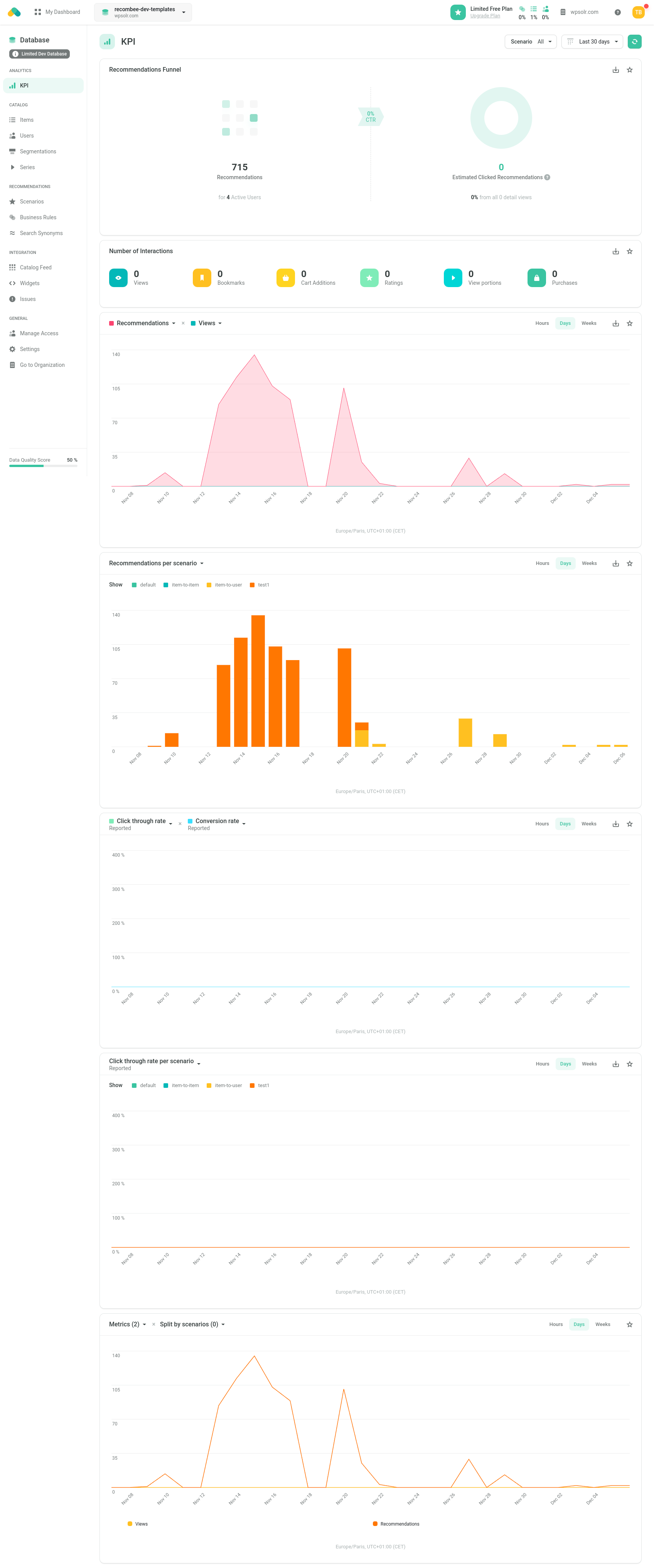
Image wpsolr_recombee_dashboard-427x1024.png of Recombee - Recommendations

Creating recombee scenario


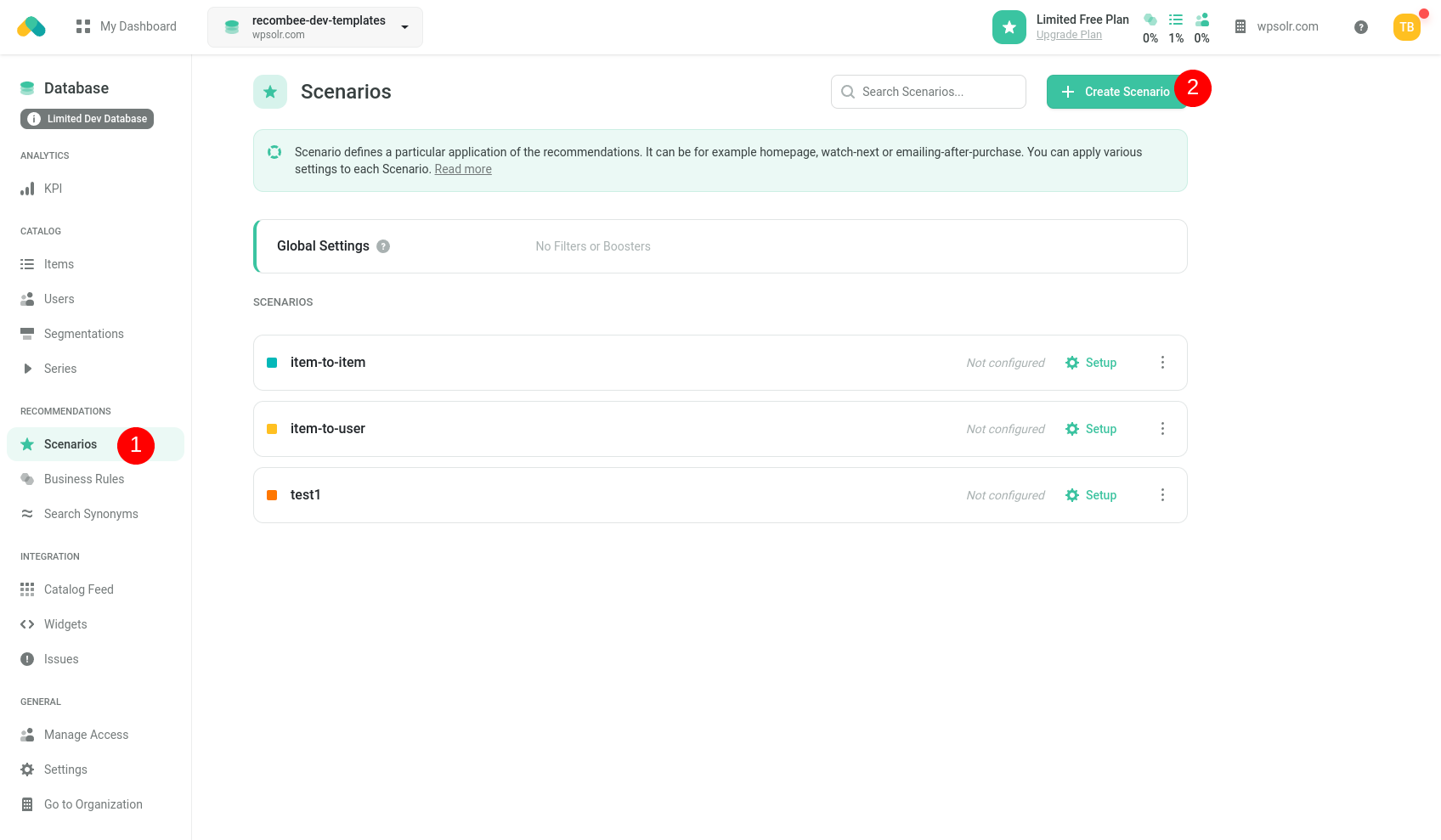
Image wpsolr_recombee_create_scenario.png of Recombee - Recommendations

  1. Select the “Scenarios” tab in your selcted database (in this case “recombee-dev-templates“).
  2. Create a new scenario using the “Create Scenario” button.
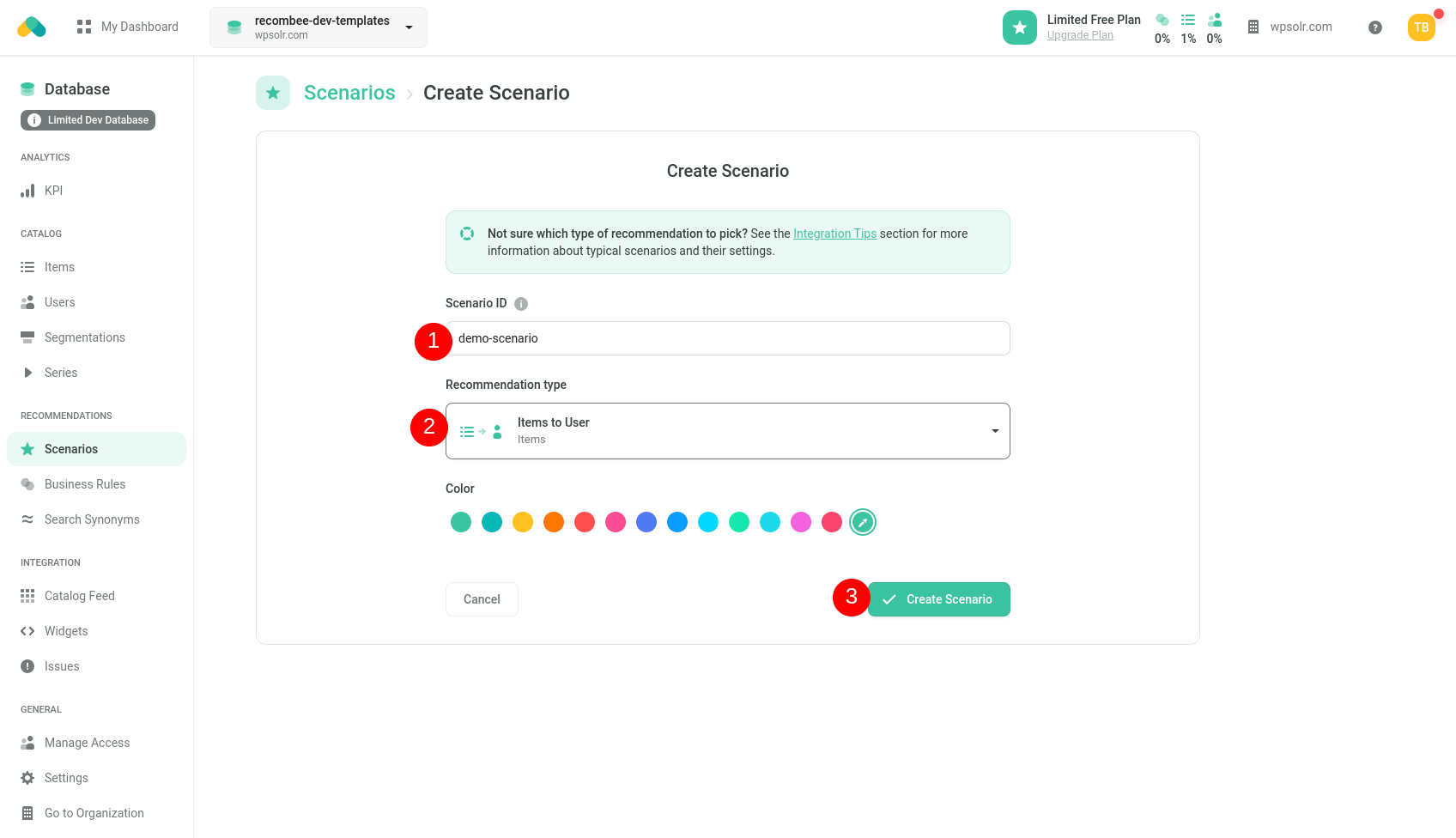
Image wpsolr_recombee_create_scenario_2.png of Recombee - Recommendations

  1. Choose the name of the scenario. In this case, “demo-scenario“.
  2. Choose the recommendations type, in this case “Items to User”. Here is a full list :
    • Items to item
    • Items to user
    • Search items (only used for personalized search)
    • Item segments to user
    • Item segments to item
    • Item segments to item segment
    • Search item segments (only used for personalized search)
    • Users to item
    • Users to user
  3. Create the scenario by clicking the button : “Create Scenario”.
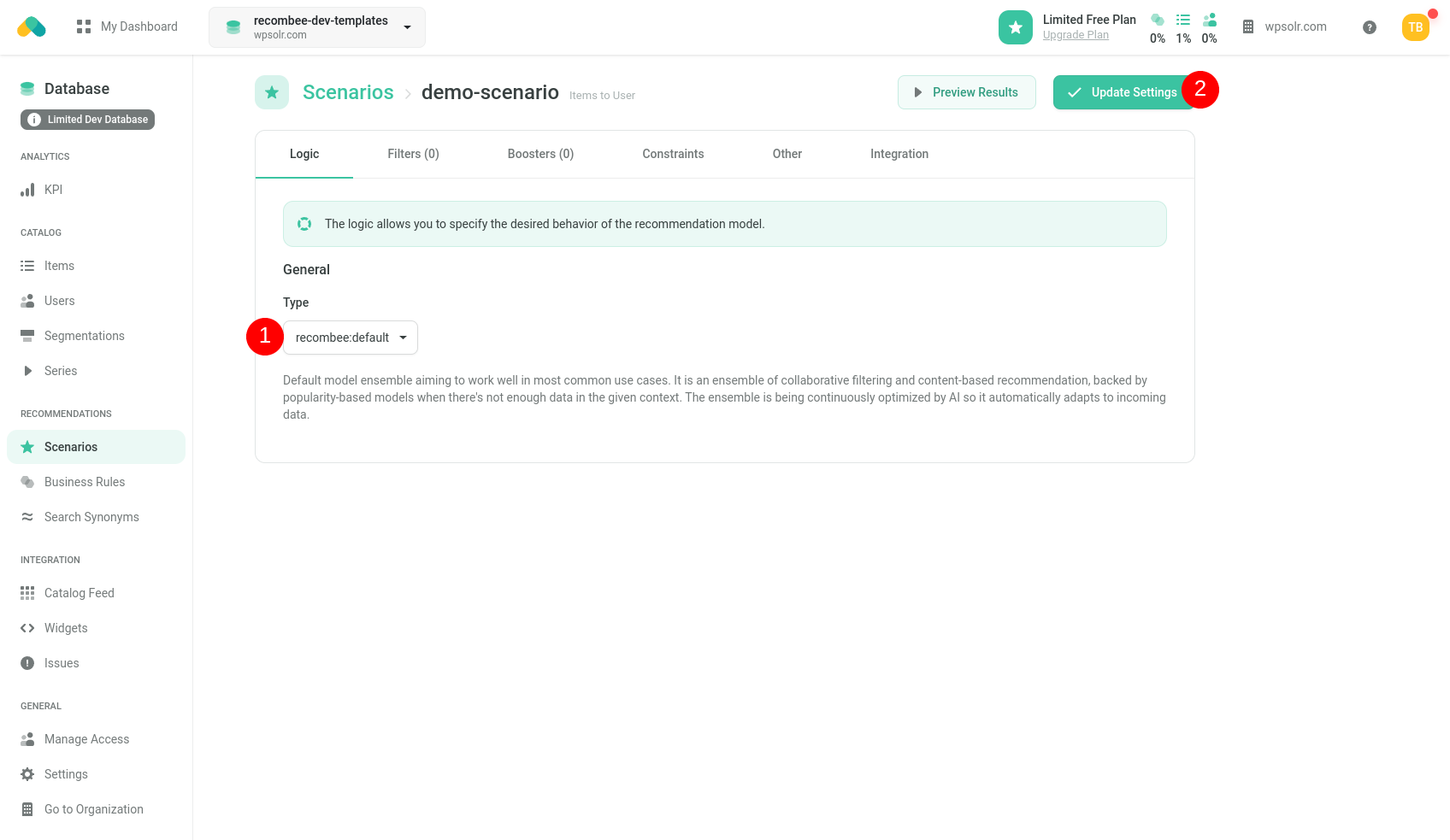
Image wpsolr_recombee_create_scenario_3.png of Recombee - Recommendations

  1. You can leave the type by default. A full list is :
    • Default
    • Similar
    • Popular
    • Visually similar
    • Similar properties
    • Custom sort
    • Similar products
    • Cross-sell
    • Best-seller
  2. Update settings


Connect to Recombee


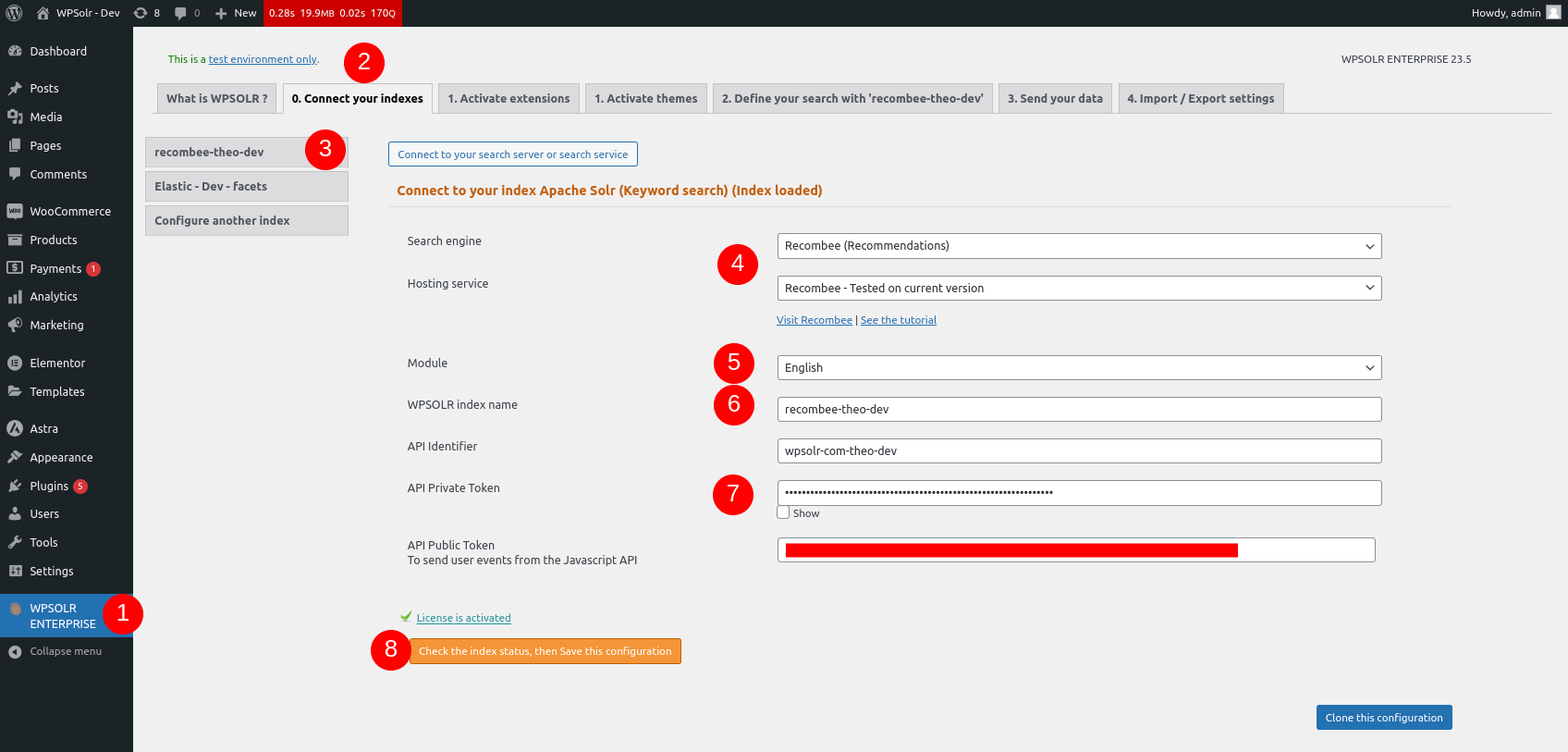
Image wpsolr_recombee_connect_index-1.png of Recombee - Recommendations

  1. Access the WPSOLR dashboard.
  2. Access the “0. Connect your indexes” tab.
  3. Click on “Configure another index” to create the new index “recombee-theo-dev”.
  4. In the drop-down list select “Recombee (Recommendations)”.
  5. Select the language of the content on your website.
  6. Name your local index : it can be named however you want since it will only be visible and accessed in this WordPress installation.
  7. For the following fields, you need to check the info from the Recombee dashboard :  Image wpsolr_recombee_tokens.png of Recombee - Recommendations
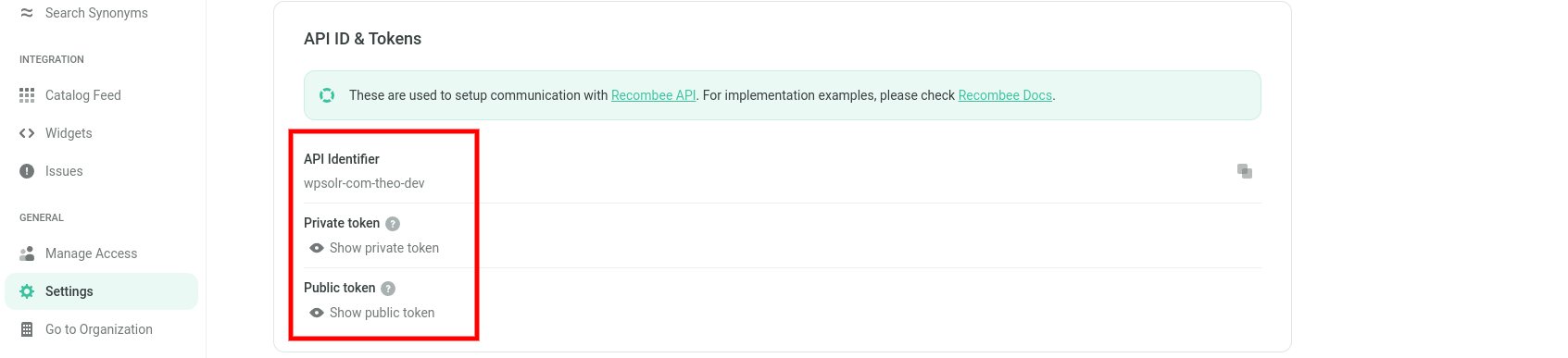
  8. Create the index

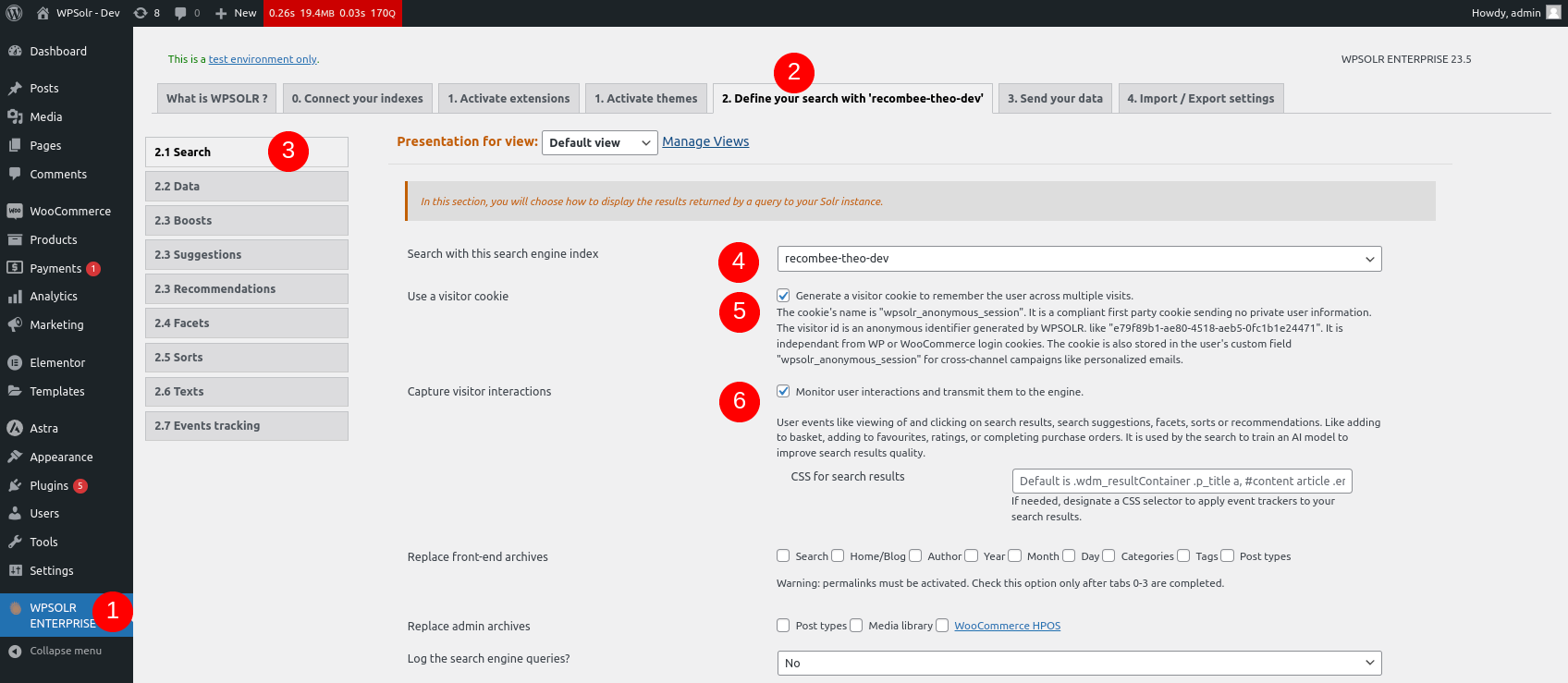
Image wpsolr_recombee_select_the_index-1.png of Recombee - Recommendations

  1. Access the WPSOLR dashboard.
  2. Select “2. Define your search”.
  3. Select the “2.1 Search tab”.
  4. Select the newly created recombee index from the drop-down list.
  5. Generate the visitor cookie.
  6. Send events to Recombee.


Configure the recommendations
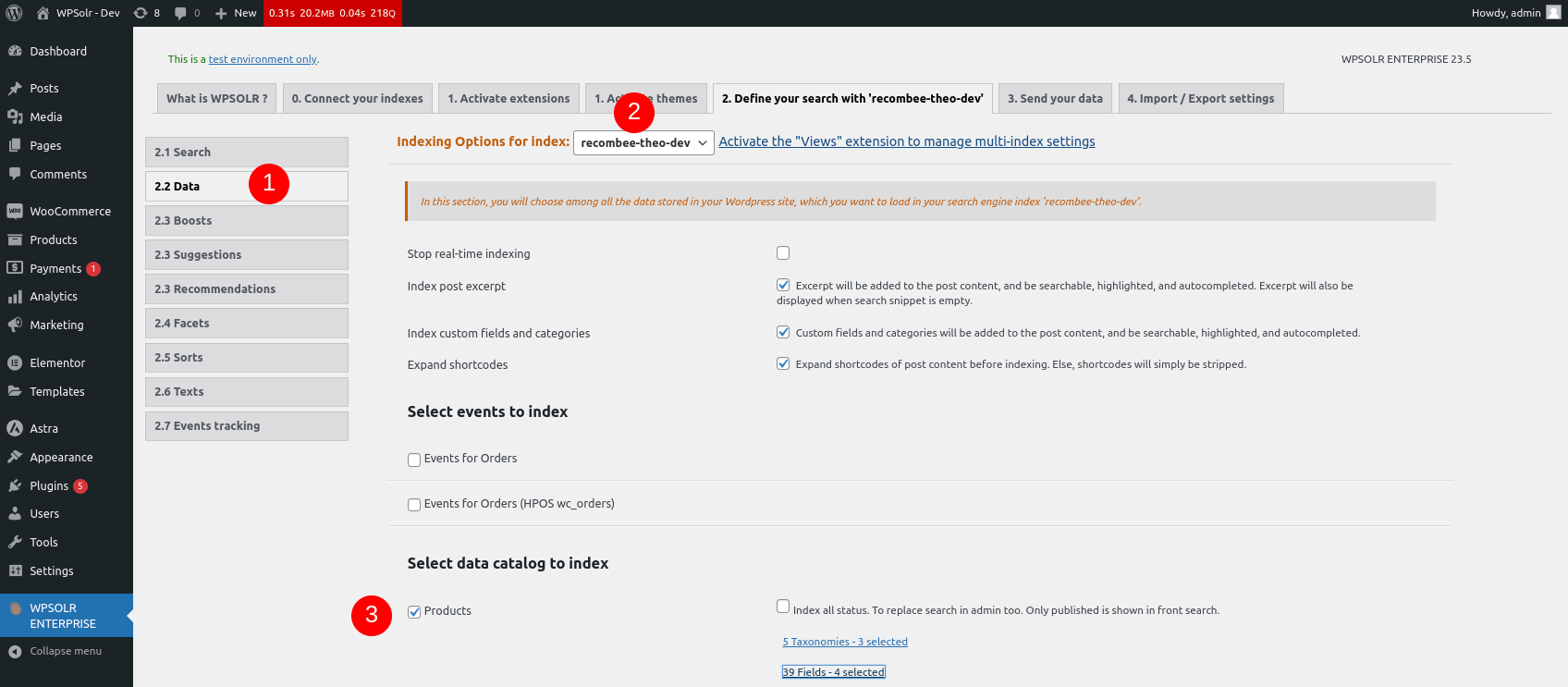
 

Image wpsolr_recombee_select_the_data.png of Recombee - Recommendations

  1. Select the “2.2 Data” tab.
  2. Select the recombee index that will store the data.
  3. Select the data you want to store. In this case, Woocommerce Products.
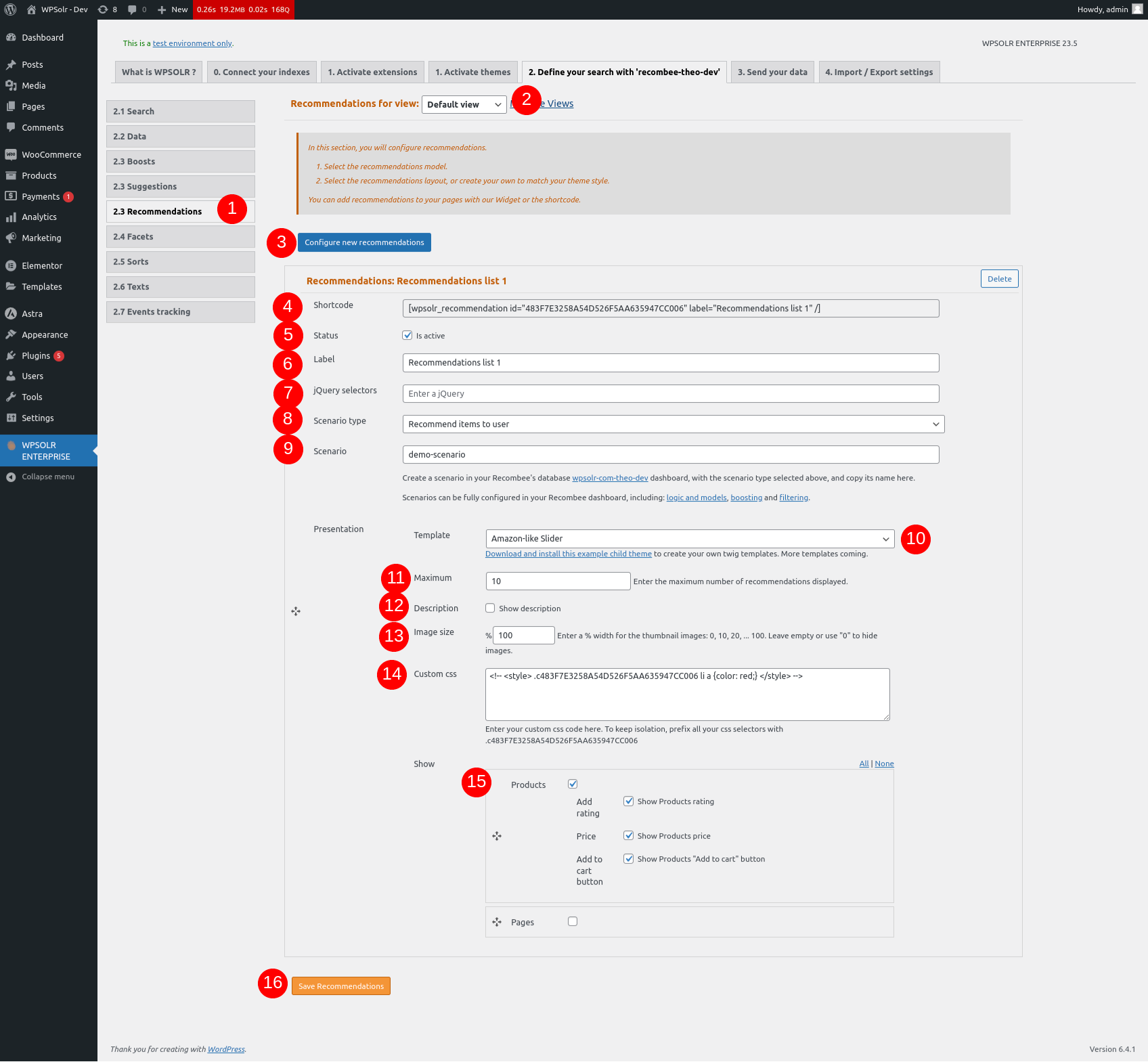
Image wpsolr_recombee_configure_recommendations.png of Recombee - Recommendations

  1. Select the 2.3 Recommendations” tab.
  2. Select the correct view (the one you chose in “2.1 Search”).
  3. Click on the button to create the recommendation. You can have as many as you want.
  4. Copy the shortcode and place it wherever you want to display the recommendation.
  5. Check the box to activate this recommendation.
  6. Choose the label of this recommendation. Name it however you want.
  7. Select a JQuery selector to indicate where to place it.
  8. Select the Scenario type. The one chosen in Recombee.
  9. Select the id of the Recombee scenario created earlier.
  10. Select the template from the drop-down list.
  11. Select the maximum of elements (products) displayed in this recommendation.
  12. If you want to display the description to the user for each element, check this box.
  13. Select the image size of each element in the recommendations.
  14. Add any custom css you want here.
  15. Select which WordPress data type you want to display in the recommendation. Inside this type, you can choose which fields you want to display for these products.
  16. You can then save the recommendations.


Send the data
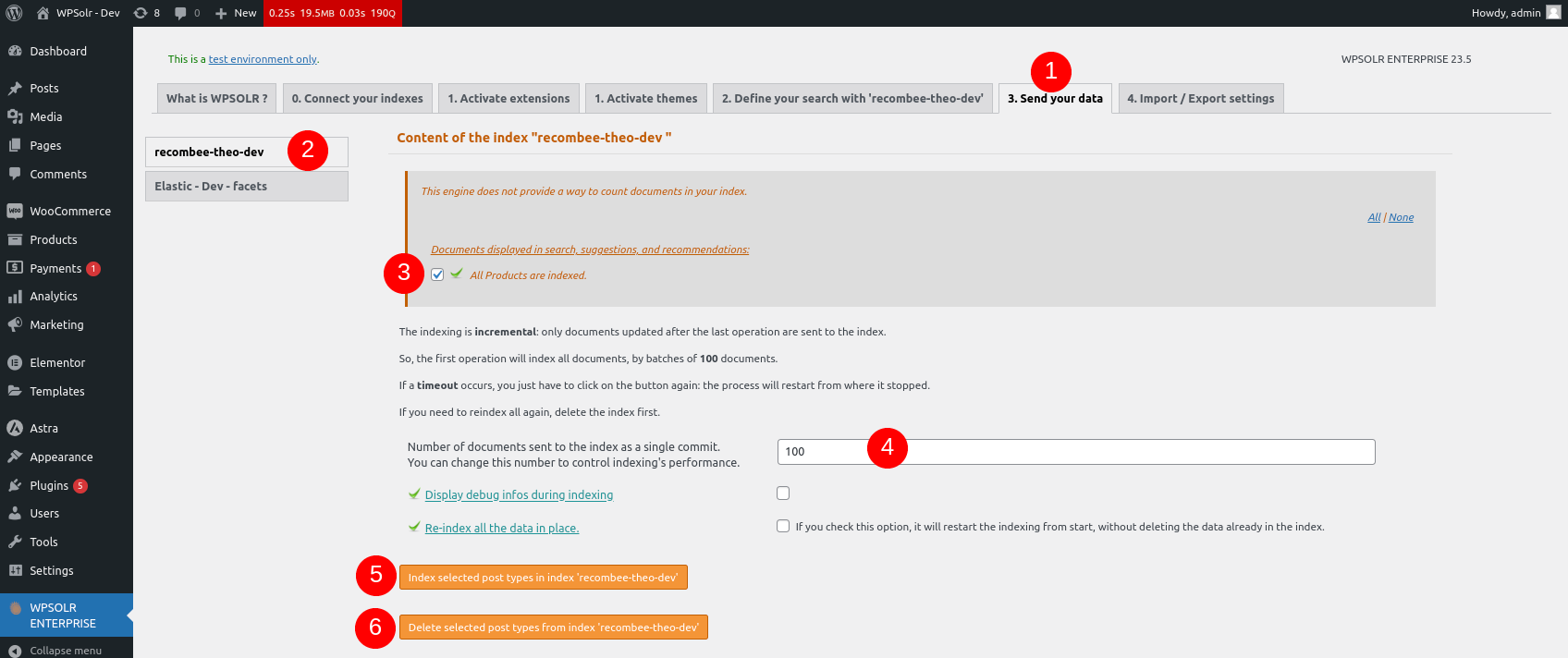
 

Image wpsolr_recombee_send_data.png of Recombee - Recommendations

  1. In the “3. Send your data”.
  2. In the “recombee-theo-dev” index.
  3. Select which of the data types you have checked in “2.2 Data”, you which to modify.
  4. Choose which batch size you want when sending your data.
  5. Send all the data checked above in this tab to Recombee.
  6. Delete all the data checked above in this tab from Recombee.


View the Recommendation
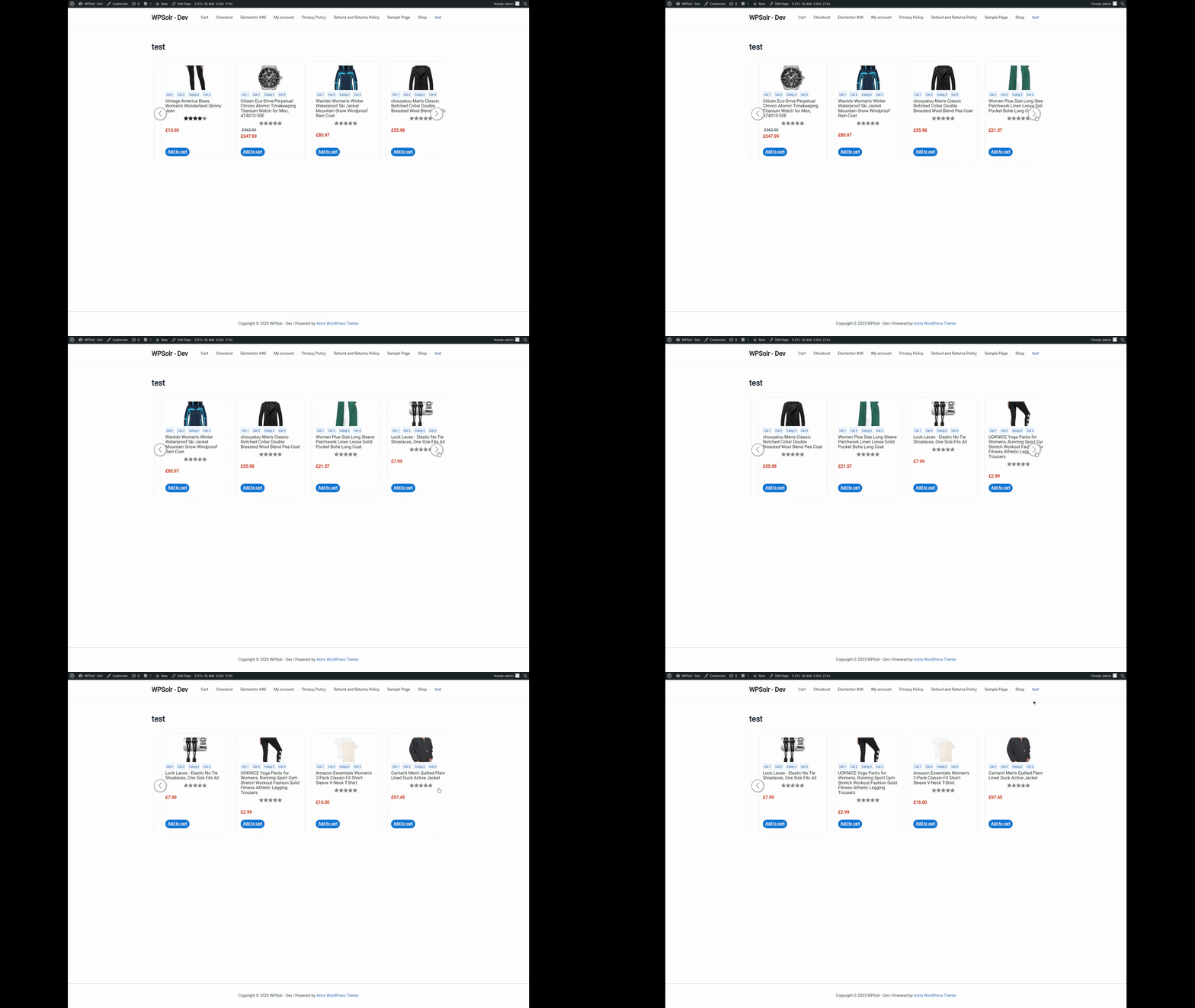
 

Image wpsolr_recombee_view_recommendation.gif of Recombee - Recommendations


Was this helpful?

2 Yes  No
Related Articles
  • Configure WPSOLR Parsing and Chunking
  • Create a WPSOLR Hosting OpenSearch index
  • Create your Custom Templates for Citations, Suggestions, Related Posts & Recommendations
  • Getting started with facets
  • Getting started with Ajax (live) search
  • Getting started with search

Didn't find your answer? Contact Us

Previously
Algolia – Recommend and Personalized search
Up Next
Google Retail – AI Recommendations and Personalized search

Built for brands and agencies worldwide

Adobe
Software Development
10K+ employees
Harvard University
Higher Education
798K alumni
University of Essex
Higher Education
101K alumni
Tally
Software development
501-1K employees
WebFX
Advertising Services
501-1K employees
DEFINITION 6
Advertising Services
1K-5K employees
Proto Thema
Newspaper Publishing
51-200 employees
The Fold London
Retail Apparel and Fashion
11-50 employees
Georgia-Pacific LLC
Paper and Forest Product Manufacturing
10K+ employees
Agencies, Software, Universities, Media, Newspapers, Publishers, Retails, Manufacturing, E-Commerce. And many more »

Recommended content

Powered by WPSOLR Enterprise with Recombee

Understand Where Your Store Is Losing Sales
Join our Affiliate Program!
Features
Search Hosting for WordPress
File Parsing and Chunking
Integration Hub
Search
Facets (Filters)
Search Add-ons
Recommendations
Keyword search engines
Comparison grid
Apache Solr & Solr Cloud
Elasticsearch
OpenSearch
Algolia
AI search engines
Comparison grid
PostgreSQL pgvector
Weaviate
Google Retail
Vespa.ai
OpenSearch vector
AI recommendation engines
Comparison grid
Recombee
Amazon Personalize
AI personalization engines
Comparison grid
Google Retail
Algolia
Buy and Learn
Pricing
Privacy policy
Terms and Conditions
© 2026 Eostis SARL. All Rights Reserved.
More
My licenses
Support
Documentation
Blog
Recommendations powered for you by WPSolr
Manage Consent
To provide the best experiences, we use technologies like cookies to store and/or access device information. Consenting to these technologies will allow us to process data such as browsing behavior or unique IDs on this site. Not consenting or withdrawing consent, may adversely affect certain features and functions.
Functional Always active
The technical storage or access is strictly necessary for the legitimate purpose of enabling the use of a specific service explicitly requested by the subscriber or user, or for the sole purpose of carrying out the transmission of a communication over an electronic communications network.
Preferences
The technical storage or access is necessary for the legitimate purpose of storing preferences that are not requested by the subscriber or user.
Statistics
The technical storage or access that is used exclusively for statistical purposes. The technical storage or access that is used exclusively for anonymous statistical purposes. Without a subpoena, voluntary compliance on the part of your Internet Service Provider, or additional records from a third party, information stored or retrieved for this purpose alone cannot usually be used to identify you.
Marketing
The technical storage or access is required to create user profiles to send advertising, or to track the user on a website or across several websites for similar marketing purposes.
  • Manage options
  • Manage services
  • Manage {vendor_count} vendors
  • Read more about these purposes
View preferences
  • {title}
  • {title}
  • {title}