
WPSolr logo
  • Hundreds of brands you love, love WPSOLR 💛
  • Products
    • Parsing & Chunking
    • Search
      • Algolia  Search
      • Apache Solr  Search
      • Elasticsearch  Search
      • Google AI Commerce  Search
      • OpenSearch  Search
      • OpenSolr  Search
    • AI Search
      • OpenSearch  AI Search
      • PostgreSQL  AI Search
      • Vespa  AI Search
      • Weaviate  AI Search
    • AI Recommendations
      • Amazon Personalize  AI Recommendations
      • Recombee  AI Recommendations
    • AI Personalized Search & Recommendations
      • Algolia  AI Personalized Search & Recommendations
      • Google AI Commerce  AI Personalized Search & Recommendations
  • Learn
    • Documentation & Guides – Everything to get started fast
    • Youtube – 100 practical videos from setup to live site demos
    • Forums – Direct support from our team
  • Pricing
  • My licenses
  • Meet
  • 📞  Call
    • 📞  US : (951) 612-8259
    • 📞  France : 01 62 04 55 85
  • Hundreds of brands you love, love WPSOLR 💛
  • Products
    • Parsing & Chunking
    • Search
      • Algolia  Search
      • Apache Solr  Search
      • Elasticsearch  Search
      • Google AI Commerce  Search
      • OpenSearch  Search
      • OpenSolr  Search
    • AI Search
      • OpenSearch  AI Search
      • PostgreSQL  AI Search
      • Vespa  AI Search
      • Weaviate  AI Search
    • AI Recommendations
      • Amazon Personalize  AI Recommendations
      • Recombee  AI Recommendations
    • AI Personalized Search & Recommendations
      • Algolia  AI Personalized Search & Recommendations
      • Google AI Commerce  AI Personalized Search & Recommendations
  • Learn
    • Documentation & Guides – Everything to get started fast
    • Youtube – 100 practical videos from setup to live site demos
    • Forums – Direct support from our team
  • Pricing
  • My licenses
  • Meet
  • 📞  Call
    • 📞  US : (951) 612-8259
    • 📞  France : 01 62 04 55 85
  • Hundreds of brands you love, love WPSOLR 💛
  • Products
    • Parsing & Chunking
    • Search
      • Algolia  Search
      • Apache Solr  Search
      • Elasticsearch  Search
      • Google AI Commerce  Search
      • OpenSearch  Search
      • OpenSolr  Search
    • AI Search
      • OpenSearch  AI Search
      • PostgreSQL  AI Search
      • Vespa  AI Search
      • Weaviate  AI Search
    • AI Recommendations
      • Amazon Personalize  AI Recommendations
      • Recombee  AI Recommendations
    • AI Personalized Search & Recommendations
      • Algolia  AI Personalized Search & Recommendations
      • Google AI Commerce  AI Personalized Search & Recommendations
  • Learn
    • Documentation & Guides – Everything to get started fast
    • Youtube – 100 practical videos from setup to live site demos
    • Forums – Direct support from our team
  • Pricing
  • My licenses
  • Meet
  • 📞  Call
    • 📞  US : (951) 612-8259
    • 📞  France : 01 62 04 55 85
Expand All Collapse All
  • What is WPSOLR ?
    • The standard WordPress SQL search
    • The WPSOLR search with Elasticsearch, Apache Solr, or Algolia
  • Your configuration journey, step by step
    • Install Apache Solr
    • Hosted Apache Solr and SolrCloud Services
    • Install Weaviate
    • Install Opensearch
    • Install Elasticsearch
    • Elasticsearch Hosting
    • Configure search
      • Getting started with search
      • Getting started with Ajax (live) search
      • Getting started with facets
      • 0. Connect your indexes
        • Create a Google Retail search index
        • Create an Elasticsearch index
          • Generate a test Elasticsearch index
          • Create an Elastic Elasticsearch index
          • Create an Elasticsearch index
          • Create a Qbox Elasticsearch index
          • Create an ElasticPress Elasticsearch index
          • Create an Aiven Elasticsearch or OpenSearch index
          • Create a Bonsai Elasticsearch index
          • Create an Amazon AWS Elasticsearch index
          • Create an ObjectRocket Elasticsearch index
          • Create a Cloudways Elasticsearch or Opensearch index
          • Create an Alibaba Cloud Elasticsearch index
          • Create a Compose Elasticsearch index
          • Connect to an Elasticsearch index
        • Create an Apache Solr index
          • Generate a test Apache Solr index
          • Create an Apache Solr index
          • Create a SearchStax SolrCloud index
          • Create an Opensolr Solr index
          • Connect to an Apache Solr index
        • Create an Opensearch index
          • Create a WPSOLR Hosting OpenSearch index
          • Create an Amazon AWS OpenSearch index
        • Create a Weaviate index
          • Weaviate with Google PaLM API
          • Weaviate with GPT4All
          • Weaviate with sentence transformers
          • Weaviate with CLIP text-to-image
          • Weaviate with HuggingFace Endpoints API
          • Weaviate with OpenAI GPT API
          • Weaviate with Cohere Multilingual API
          • Weaviate with Question Answering transformers
          • Weaviate with Hybrid search
          • Weaviate with Reranker - Cohere
          • Weaviate with Reranker - Transformers (cross-encoders)
        • Create an Algolia index
      • 1. Activate extensions (Add-ons)
        • bbPress add-on
        • YITH WooCommerce Ajax Search add-on
        • SEO add-ons
          • Yoast SEO add-on
          • All in One SEO add-on
        • Listable add-on
        • ACF add-on
        • Advanced Scoring add-on
        • Cron Scheduling add-on
        • Theme add-on
          • Filters layouts
            • Radiobox & Checkbox Layout
            • Numeric Range Layout
            • Colour Picker Layout
            • Date Picker (Flatpickr) Layout
            • Range Slider Layout
          • Add Ajax to the current Theme
          • Collapse taxonomy hierarchies
          • Custom Facets CSS
        • WPML add-on
        • Premium add-on
          • Manage more than one Elasticsearch or Solr index
        • PDF Embedder add-on
        • Geolocation add-on
        • AI Natural Language APIs add-on
          • Amazon Comprehend
          • Google Natural Language
          • Aylien Text Analysis
          • MeaningCloud
          • Qwam Text Analytics
        • Toolset Types add-on
        • AI Image and OCR APIs add-on
          • Google Vision
          • Amazon Rekognition
        • Embed Any Document add-on
        • MyListing add-on
        • Polylang add-on
        • WooCommerce add-on
        • Cross-domain federated search add-on
        • Directory+ add-on
        • Toolset Views add-on
        • Listify add-on
        • Jobify add-on
        • Query Monitor add-on
      • 2. Define your search
        • 2.3 Boosts
        • 2.3 Suggestions (Ajax search)
        • 2.1 Search
        • 2.2 Data
      • 3. Index your data
    • Configure recommendations
      • Algolia - Recommend and Personalized search
      • Recombee - Recommendations
      • Google Retail - AI Recommendations and Personalized search
      • Amazon Personalize
    • Configure WPSOLR Parsing and Chunking
    • Create your Custom Templates for Citations, Suggestions, Related Posts & Recommendations
  • Quick start

2.3 Suggestions (Ajax search)

766 views 0 December 13, 2023 Updated on December 18, 2023

Suggestions (or Ajax search) is a dynamic type of search that allows the user to see and click on results as they are typing. WPSolr allows you to place suggestions in whatever field you want.
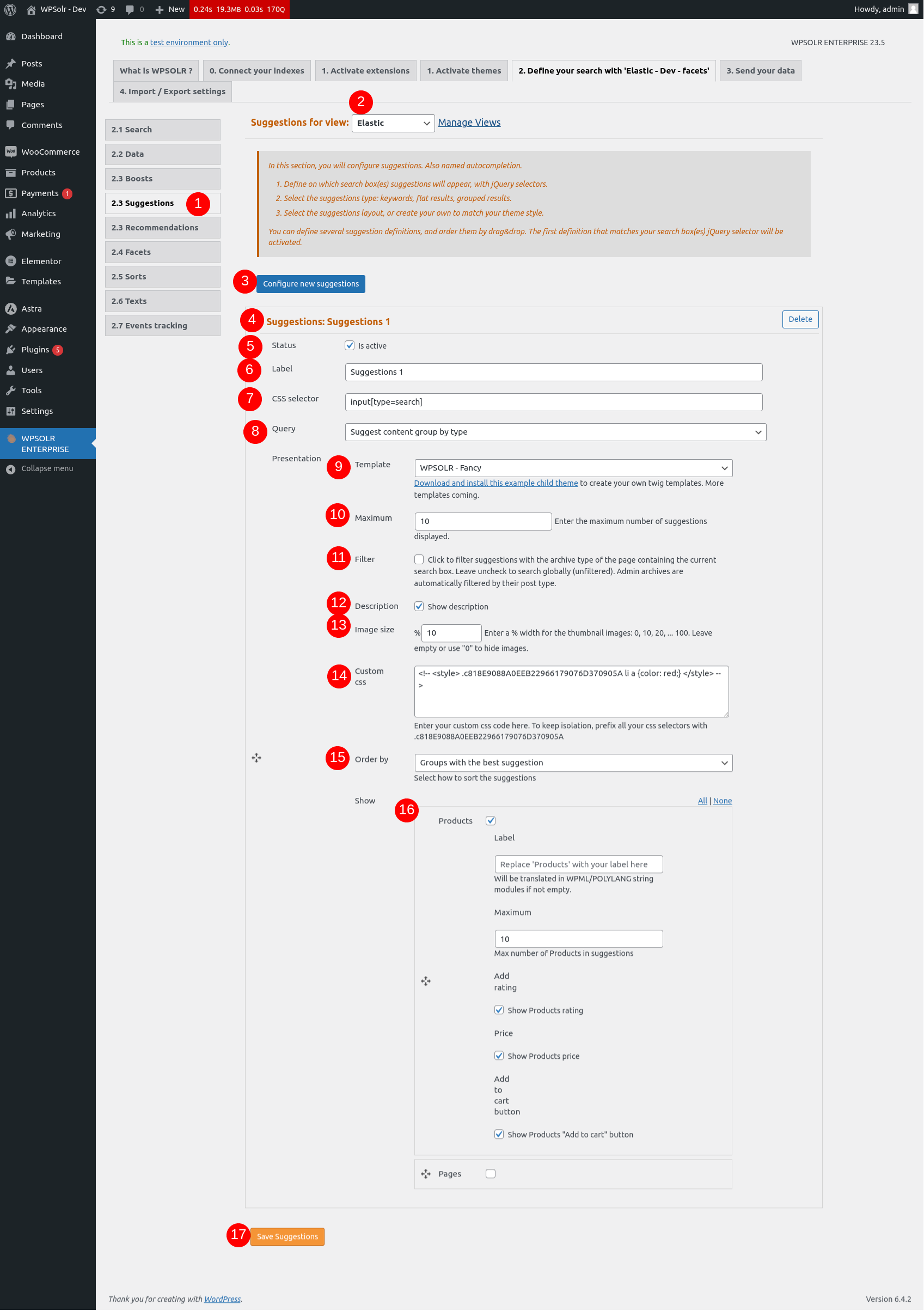
 

Image wpsolr_2_3_suggestions-2.png of 2.3 Suggestions (Ajax search)

Table of Contents

Toggle
  • Select the “Suggestions” tab
  • Select the correct view (if you have PRO edition and up)
  • Click on “Configure new suggestions”
  • Suggestions options
  • Activate this suggestion
  • Label
  • CSS selector
  • Select “Query”
  • Choose the template (skin)
  • Maximum number of suggestions
  • Filter (for “Suggest content” and “Suggest content group by type” only)
  • Description
  • Image size
  • Custom CSS
  • Order by (for “Suggest content group by type” only)
  • Select content types to display
  • Save suggestions

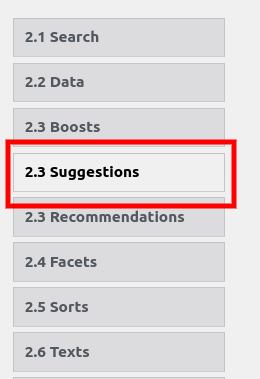
Select the “Suggestions” tab

Image wpsolr_2_3_suggestions_tab.png of 2.3 Suggestions (Ajax search)

Click on the “2.3 Suggestions” tab on the left.


Select the correct view (if you have PRO edition and up)

 

Image wpsolr_2_3_suggestions_select_view.png of 2.3 Suggestions (Ajax search)

Select the view that uses the index of your choice. Each view you created in the WPSOLR view add-on appears in this drop-down list. In this case, I chose the “Elastic” view I created that uses an Elasticsearch index.


Click on “Configure new suggestions”

 

Image wpsolr_2_3_suggestions_new_suggestions_button.png of 2.3 Suggestions (Ajax search)

Clicking on this button will create a new suggestion. You can create as many as you want.


Suggestions options


Each time you click on the “Configure new suggestions” button a new suggestions options section appears. There are a wide range of options to choose from for each suggestions you create. Each one of the sugggestions for this view use the view index (in this case Elasticsearch).

Image wpsolr_2_3_suggestions_delete_button.png of 2.3 Suggestions (Ajax search)

Foreach suggestion, you can click on the “Delete” button to delete it.


Activate this suggestion

 

Image wpsolr_2_3_suggestions_active_checkbox.png of 2.3 Suggestions (Ajax search)

Check the “Status” box to make this suggestions active. If you don’t want to use this suggestion, leave this unchecked.


Label

 

Image wpsolr_2_3_suggestions_label.png of 2.3 Suggestions (Ajax search)

Type in your label. This will appear at the top of this suggestion options section. It is so the administrator can differentiate all the suggestions that appear in this admin page.

Image wpsolr_2_3_suggestions_label_appearance.png of 2.3 Suggestions (Ajax search)


CSS selector


Image wpsolr_2_3_suggestions_css_selector.png of 2.3 Suggestions (Ajax search)

Target the search bar that should use this suggestion using the “CSS selector” field. In this case (field of value “input[type=search]”), when the user types in any input of type “search”, Ajax search will be used and suggestions will appear.


Image wpsolr_2_3_suggestions_input.png of 2.3 Suggestions (Ajax search) Image wpsolr_2_3_suggestions_input_html.png of 2.3 Suggestions (Ajax search)

Select “Query”


Image wpsolr_2_3_suggestions_query.png of 2.3 Suggestions (Ajax search)

Select the type of query you want to use for this suggestion from the drop-down list. Here are the following options :

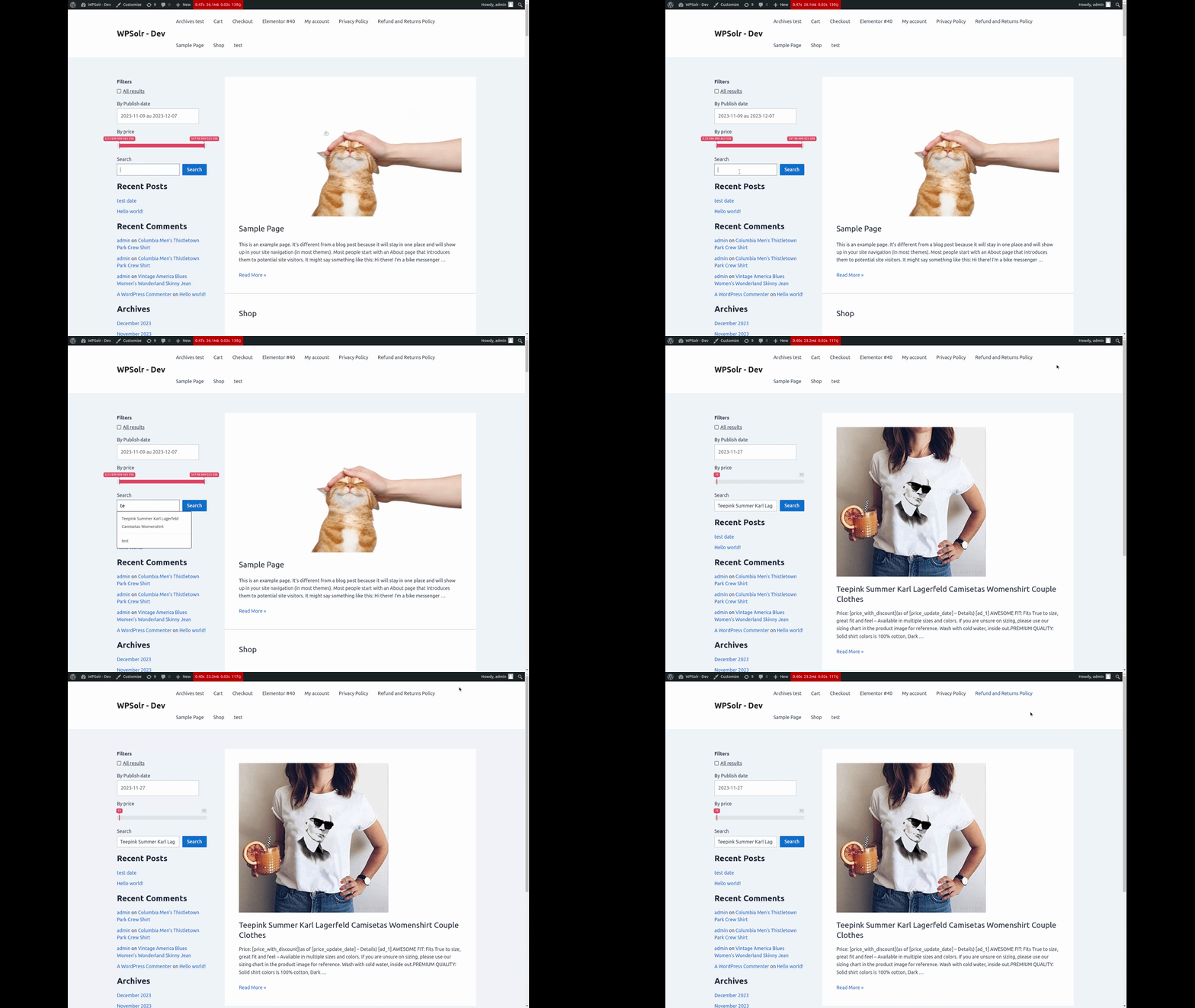
  • Suggest Keywords : this will return text results based on the user query. When the user selects a keyword result from this Ajax search, a search query using this keyword will be sent to the server. Image wpsolr_2_3_suggestions_example_keyword.gif of 2.3 Suggestions (Ajax search)
  • Suggest content : this will return all the matching content in bulk. Image wpsolr_2_3_suggestions_example_content.gif of 2.3 Suggestions (Ajax search)
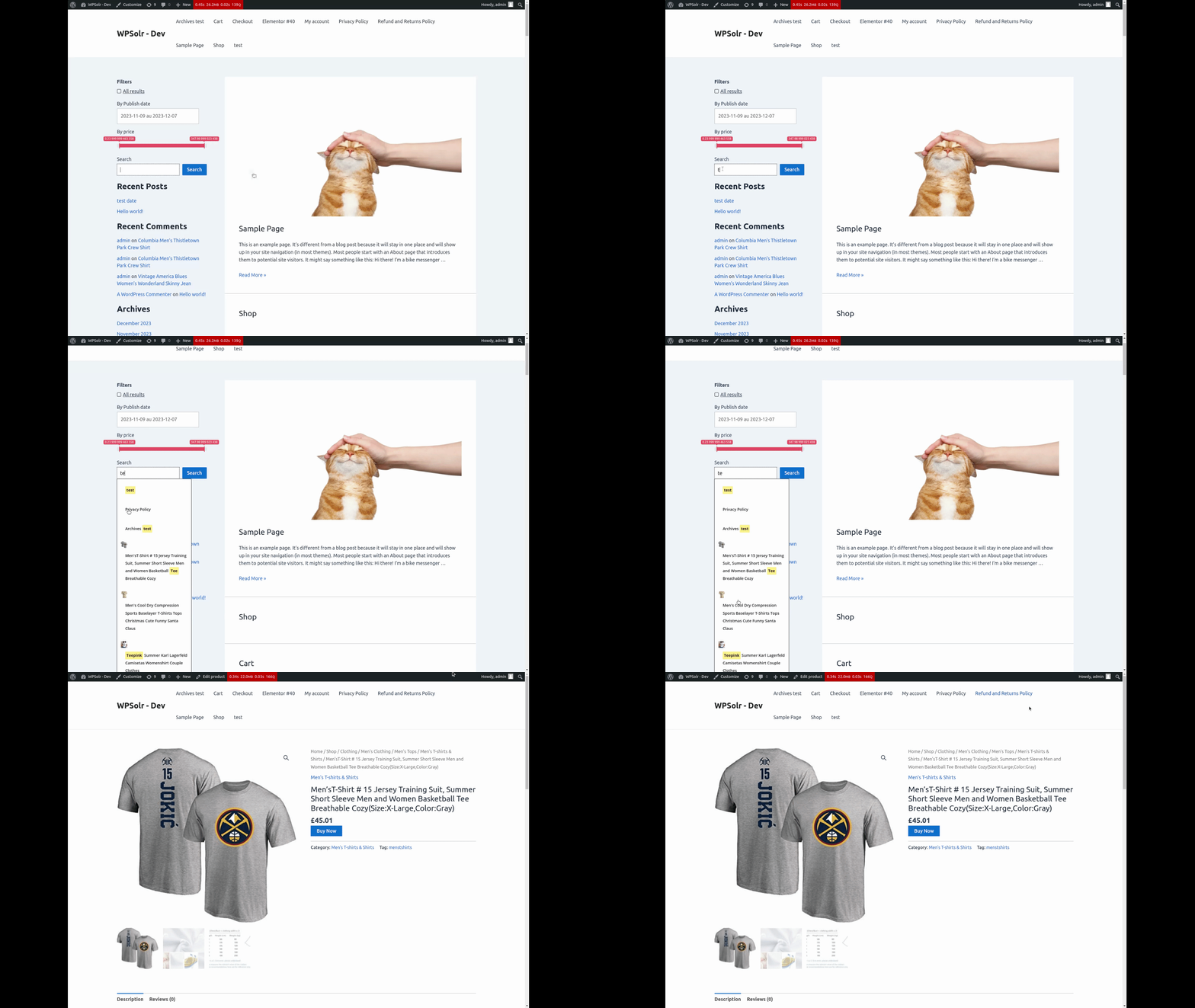
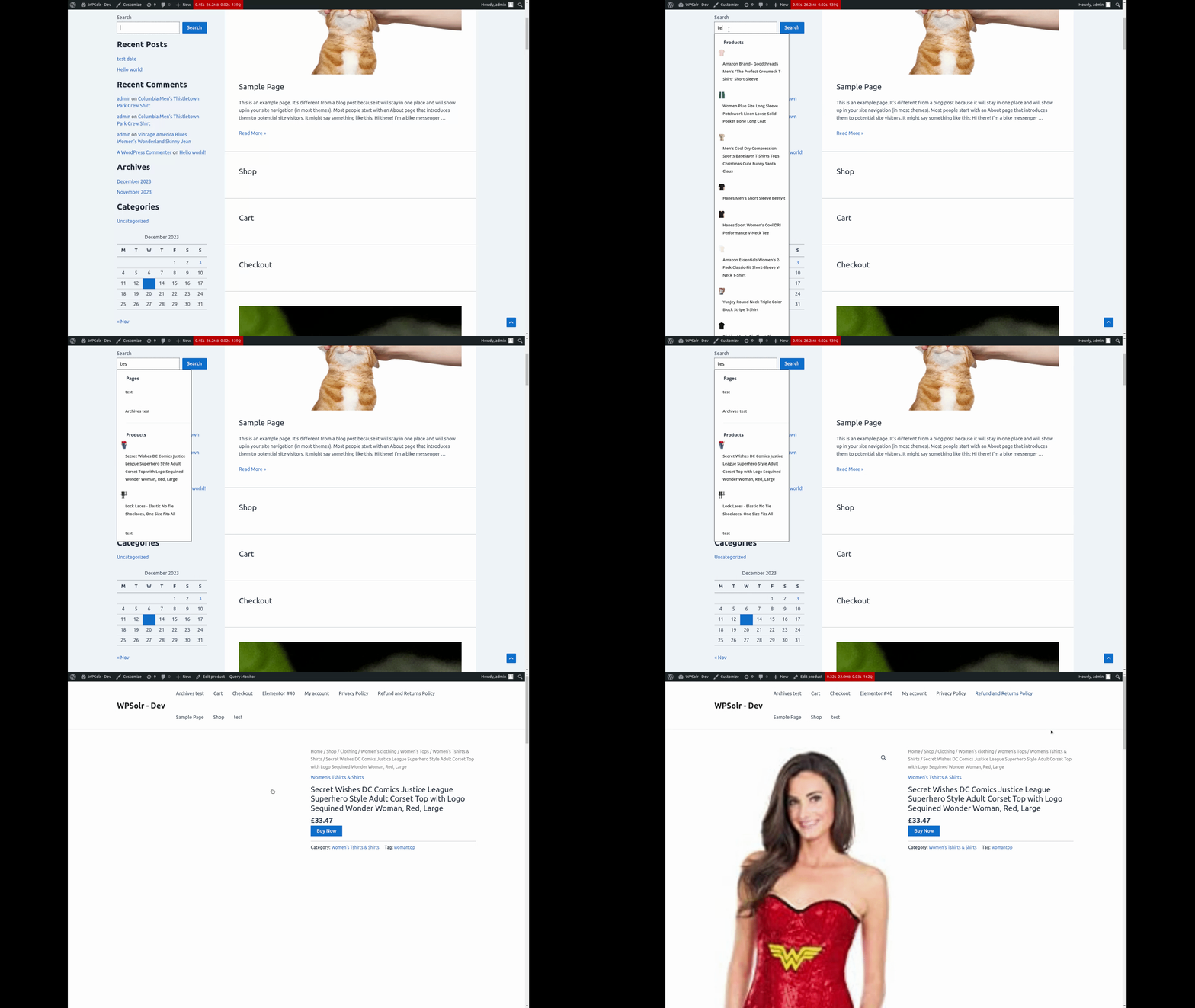
  • Suggest content group by type : this will return all the matching content categorized by type (all matching pages in “Pages” section, all matching products in “Products” section, etc…). Image wpsolr_2_3_suggestions_example_content_group.gif of 2.3 Suggestions (Ajax search)
  • Questions and answers (only available if using a Weaviate index) : This will return AI generated answers using all the indexed documents based on what the users enter in the search bar.


If you have selected “Suggest keywords”, a new field named “Redirect to” appears.

Image wpsolr_2_3_suggestions_redirect_to.png of 2.3 Suggestions (Ajax search)

This will determine the archive that will be used to send the query and return the results. The default archive/search page is “/?s=”. All the keywords you select in the description will be used as a query in this archive.


Choose the template (skin)

 

Image wpsolr_2_3_suggestions_skin.png of 2.3 Suggestions (Ajax search)

Choose the skin you want from a drop-down list.


Maximum number of suggestions

 

Image wpsolr_2_3_suggestions_maximum_number_results.png of 2.3 Suggestions (Ajax search)

This will set the maximum number of elements that will appear when Ajax search is used.


Filter (for “Suggest content” and “Suggest content group by type” only)

 

Image wpsolr_2_3_suggestions_filter.png of 2.3 Suggestions (Ajax search)

All the content returned will have been filtered by the facets in the archive.


Description

 

Image wpsolr_2_3_suggestions_description.png of 2.3 Suggestions (Ajax search)

Check the “Description” box to show each one of the results description in the Ajax search.


Image size

 

Image wpsolr_2_3_suggestions_image_size.png of 2.3 Suggestions (Ajax search)

Select the image width in this field. If you want each result image to occupy the entire width of the suggestions results section, set it to 100%.


Custom CSS
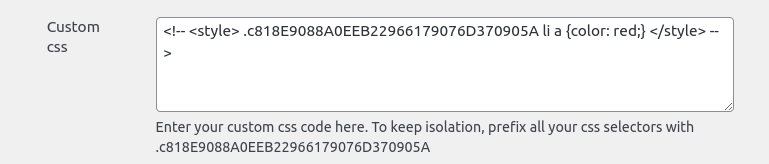
 

Image wpsolr_2_3_suggestions_custom_css.png of 2.3 Suggestions (Ajax search)

Enter your own CSS into this field. This enables the admin to easily have total freedom over the suggestions results appearance. To target a specific suggestion, select your own ones class name like the one written above (“.c818E…”).


Order by (for “Suggest content group by type” only)

 

Image wpsolr_2_3_suggestions_order_by.png of 2.3 Suggestions (Ajax search)


Select your “Order by” value from the drop-down list :

  • Groups with the best suggestion : this will position the groups based on their relevancy (groups containing the most relevant results will appear on top).
  • Groups with their position defined below by drag&drop : the admin defines the groups order manually in the suggestions.


Select content types to display
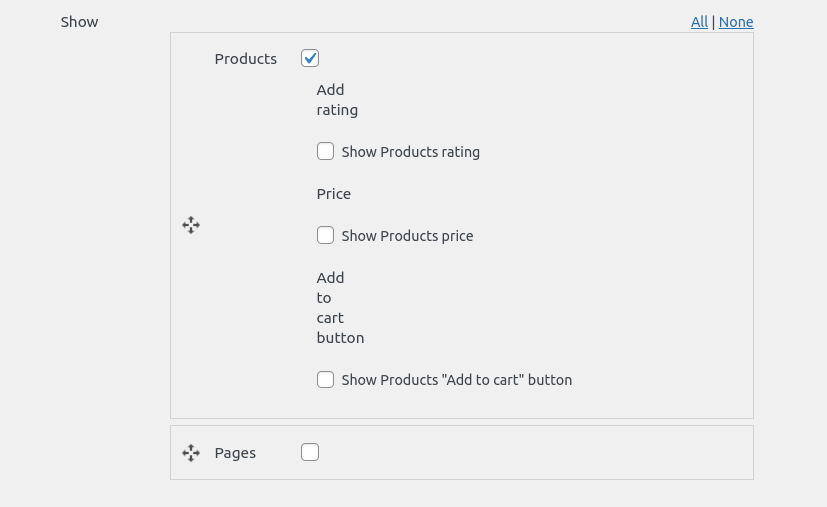
 

Image wpsolr_2_3_suggestions_select_data.png of 2.3 Suggestions (Ajax search)

This “Show” section is drag & drop. All the data that appears here are the ones you selected in “2.2 Data” and you can reposition them however you want.

For Woocommerce products, you can select the data to display (rating, price, add to cart).
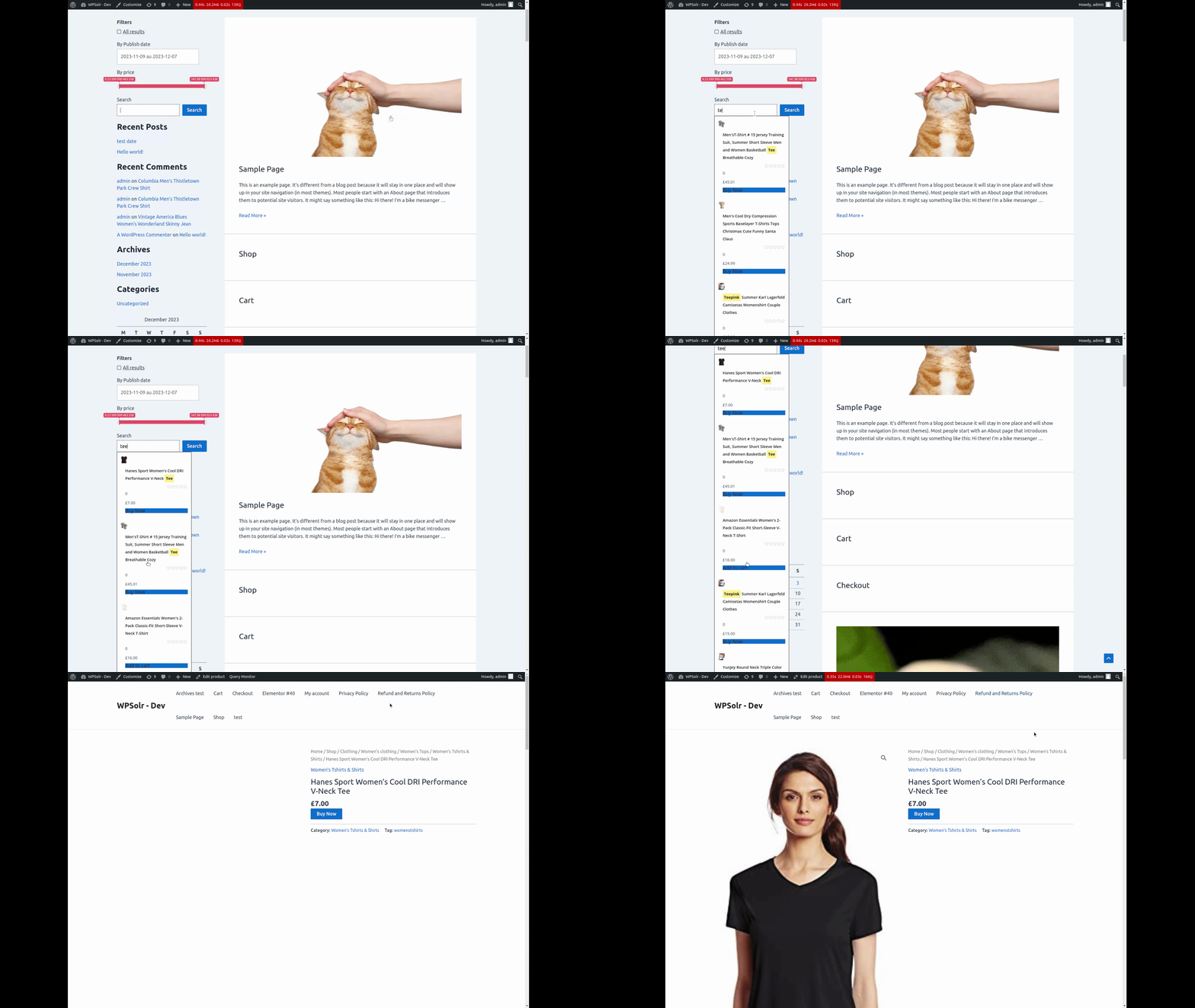
Image wpsolr_2_3_suggestions_example_woocommerce.gif of 2.3 Suggestions (Ajax search)


Save suggestions


Image wpsolr_2_3_suggestions_save_suggestions.png of 2.3 Suggestions (Ajax search)

Click on the “Save suggestions” button at the bottom of the page to save all the different suggestions configurations you created.

Was this helpful?

Yes  No
Related Articles
  • Configure WPSOLR Parsing and Chunking
  • Create a WPSOLR Hosting OpenSearch index
  • Create your Custom Templates for Citations, Suggestions, Related Posts & Recommendations
  • Getting started with facets
  • Getting started with Ajax (live) search
  • Getting started with search

Didn't find your answer? Contact Us

Previously
2.3 Boosts
Up Next
2.1 Search

Recommended content

Powered by WPSOLR Enterprise with Recombee

Understand Where Your Store Is Losing Sales
Join our Affiliate Program!
Features
Search Hosting for WordPress
File Parsing and Chunking
Integration Hub
Search
Facets (Filters)
Search Add-ons
Recommendations
Keyword search engines
Comparison grid
Apache Solr & Solr Cloud
Elasticsearch
OpenSearch
Algolia
AI search engines
Comparison grid
PostgreSQL pgvector
Weaviate
Google Retail
Vespa.ai
OpenSearch vector
AI recommendation engines
Comparison grid
Recombee
Amazon Personalize
AI personalization engines
Comparison grid
Google Retail
Algolia
Buy and Learn
Pricing
Privacy policy
Terms and Conditions
© 2026 Eostis SARL. All Rights Reserved.
More
My licenses
Support
Documentation
Blog
Recommendations powered for you by WPSolr
Manage Consent
To provide the best experiences, we use technologies like cookies to store and/or access device information. Consenting to these technologies will allow us to process data such as browsing behavior or unique IDs on this site. Not consenting or withdrawing consent, may adversely affect certain features and functions.
Functional Always active
The technical storage or access is strictly necessary for the legitimate purpose of enabling the use of a specific service explicitly requested by the subscriber or user, or for the sole purpose of carrying out the transmission of a communication over an electronic communications network.
Preferences
The technical storage or access is necessary for the legitimate purpose of storing preferences that are not requested by the subscriber or user.
Statistics
The technical storage or access that is used exclusively for statistical purposes. The technical storage or access that is used exclusively for anonymous statistical purposes. Without a subpoena, voluntary compliance on the part of your Internet Service Provider, or additional records from a third party, information stored or retrieved for this purpose alone cannot usually be used to identify you.
Marketing
The technical storage or access is required to create user profiles to send advertising, or to track the user on a website or across several websites for similar marketing purposes.
  • Manage options
  • Manage services
  • Manage {vendor_count} vendors
  • Read more about these purposes
View preferences
  • {title}
  • {title}
  • {title}